Work PC Monitoring for Windows: What's New
On November 24, 2026 we released a major Reptilicus 2.0 update: version 0.2.0 of the Windows program for monitoring company computers, Android app 1.2.7 and a redesigned dashboard. Work PCs now share one subscription with phones, and the phone app keeps a steadier connection to your dashboard. Here is what changed, how to update and answers to common questions.
Windows program 0.2.0 for company PCs
The program runs on a company-owned computer and shows in your dashboard how the workday went on that PC. Version 0.2.0 is more stable, and we improved the parts customers asked about most:
- Screenshots. Screen captures are cleaner, and you can scroll through the day in the computer's card.
- Apps and time report. See which programs were opened during the day and how long people worked in each.
- Schedule. The program follows the schedule you set in the dashboard precisely.
- One subscription. No separate plan for computers: a PC takes a slot in the same subscription as your phones, up to 10 devices in total.
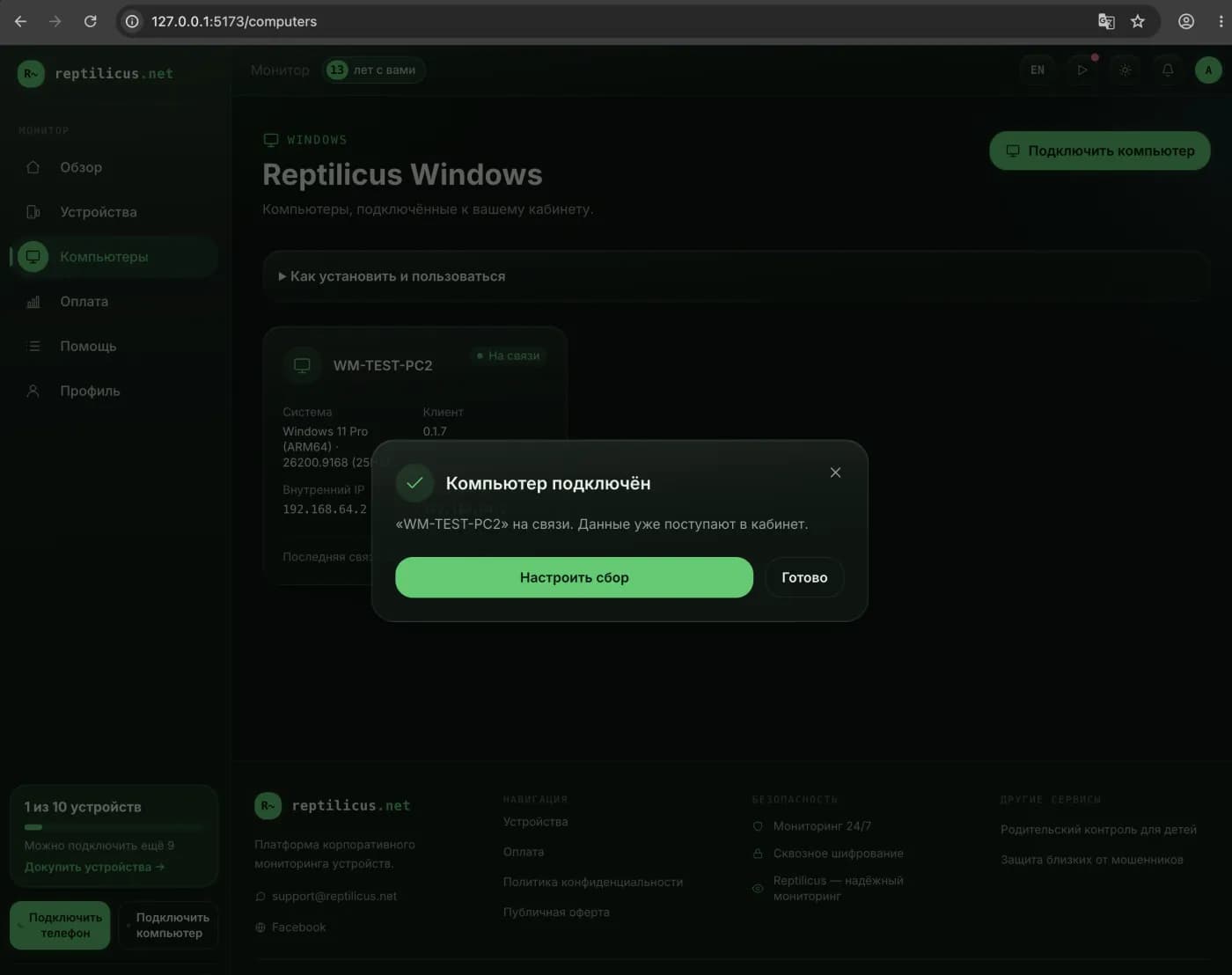
For a step-by-step setup guide, read how to connect a Windows computer to the dashboard. If you are still comparing tools, our overview of computer monitoring software explains what such programs do.
Android app 1.2.7: a steadier connection
The second part of the update is about company phones. Version 1.2.7 is built to deliver data to the dashboard more evenly, with fewer gaps. The app now:
- holds the connection to your dashboard more reliably;
- sends data and files more evenly;
- gets back to work on its own if it stops;
- has a dedicated setup step for location with the Allow all the time option;
- shows clearer setup hints on Android 13 and newer.
A redesigned dashboard
Getting started is simpler, and it is easier to see what is going on with each device:
- step-by-step phone connection that walks you through every stage;
- tips when a phone goes quiet, telling you what to check on the device;
- a route map showing where a company phone traveled during the day or the week.
All of this is part of Reptilicus 2.0, so there is nothing to switch on separately.
How to update
- Open your dashboard and tap "Download the app". Install version 1.2.7 on the work phone over the current one. The app is also available on the download page.
- Open the app and complete every setup step: permissions, location set to Allow all the time, background work. Connection stability depends on it.
- To add a computer, open the dashboard on that PC, go to the Computers section and download the Windows program.
- Check in the dashboard that the phone and the computer are online. If a phone goes quiet, the dashboard will suggest what to do.
Reptilicus 2.0 is meant for devices owned by the company, and employees must be informed about monitoring, usually through their employment contract or an internal policy.
Frequently asked questions
What is new in the Reptilicus Windows program 0.2.0?
It runs more stably, takes cleaner screenshots, shows a report on apps and time spent in them, and follows the dashboard schedule precisely.
Do I need a separate subscription for a work computer?
No. A Windows PC joins the same subscription as your phones, which covers up to 10 devices.
What changed in Android app 1.2.7?
The app holds the connection to the dashboard more reliably and gets back to work on its own if it stops. Setup hints on Android 13 and newer are clearer.
Why allow location all the time?
This option lets the route map for the day and the week build without gaps. The app has a dedicated setup step for it.
Which devices can Reptilicus be installed on?
Only on company-owned work devices, and only when employees have been informed about monitoring.