Employee Call Recording on Android: Reptilicus 2.0
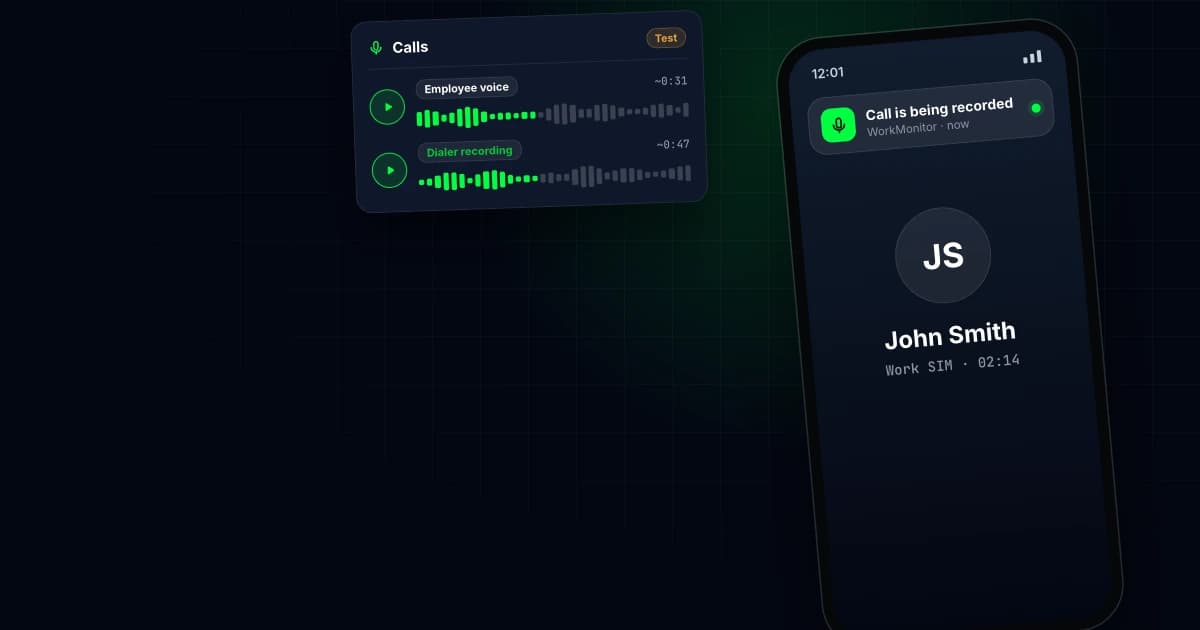
Reptilicus 2.0 can now record calls on employees' work Android phones. The feature is available in test mode starting with app version 1.2.5. The account owner turns it on in the dashboard under "Audio", then the "Calls" tab. During a regular phone call, the phone records the employee's voice through the microphone, and the employee sees a recording notification on the screen. The other person is not always recorded: below we explain what it depends on.
What gets recorded during a call
A recording can come from two sources, and the dashboard labels them differently.
- Employee voice. The app uses the phone's microphone during a regular SIM call. You will hear the employee. You will hear the other person only if the speakerphone is on. When the phone is held to the ear, most phones do not pick up the other side.
- Dialer recording. Many phones have built-in call recording in the standard dialer. If it is turned on and its folder is selected in the app, Reptilicus picks up the new file after each call. These recordings usually have both sides of the conversation. The app does not delete or move the original files.
If both sources work, a single call may show up in the dashboard twice: once from the microphone and once from the dialer.
Why call recording does not work on every phone
Android limits call recording for third-party apps, and every manufacturer handles it differently. That is why we call this feature a test and do not promise it will work on every model.
- Quality depends on the model: on some phones the employee's voice is clear, on others it is quieter.
- If the microphone records silence during calls, the app tries a different recording method on the next call and remembers which one works on that model.
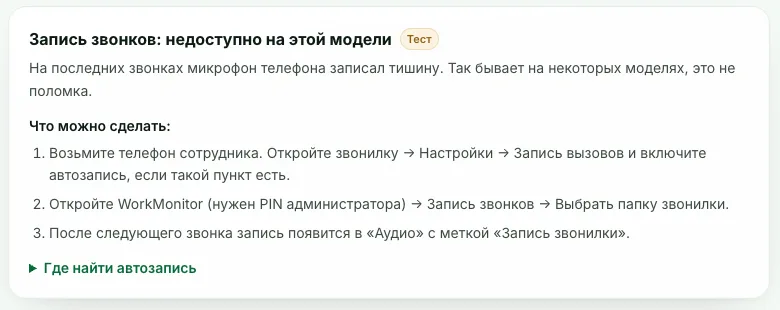
- If several full calls in a row still come out silent, the dashboard shows "Not available on this model" and suggests what you can do.
- Pixel phones do not allow apps to record calls. The call log keeps working as usual.
- If another app is using the microphone during a call, that call will not be recorded. The dashboard will say so.
How to turn on call recording
You need Reptilicus 2.0 version 1.2.5 or later. If the phone has an older version, update it: in the dashboard, click "Download the app", choose version 2.0 and install it over the current one. The phone stays linked and the settings are kept.
- Open the dashboard and select the employee's phone under "Devices".
- Go to "Audio" and open the "Calls" tab. This is the same place where call recording is set up in the Classic version.
- Under "Call recording", choose "Record all" and click "Save".
- Read the notice and click "Turn on".
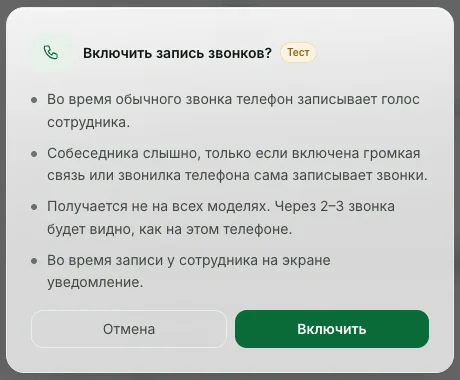
If the phone is offline right now, it will get the command once it connects. The status line shows where you are: waiting for the phone, on and waiting for the first call, or the last call recorded.
After the first two or three calls you will know how recording works on this phone. To turn recording off, choose "Off" in the same tab and save. Recordings already made stay in the dashboard.
How to connect dialer recording to hear the other person
This step is optional. Use it if your recordings only have the employee's voice and you need the whole conversation, or if the dashboard shows "Not available on this model".
- Take the employee's phone. Open the standard dialer, go to Settings, then Call recording, and turn on automatic recording if the option exists. Menu names depend on the model and firmware.
- Open the Reptilicus app (you will need the administrator PIN) and find the "Call recording" card.
- Tap "Choose dialer folder" and select the folder where the dialer saves recordings.
- After the next call, the recording appears in the dashboard labeled "Dialer recording".
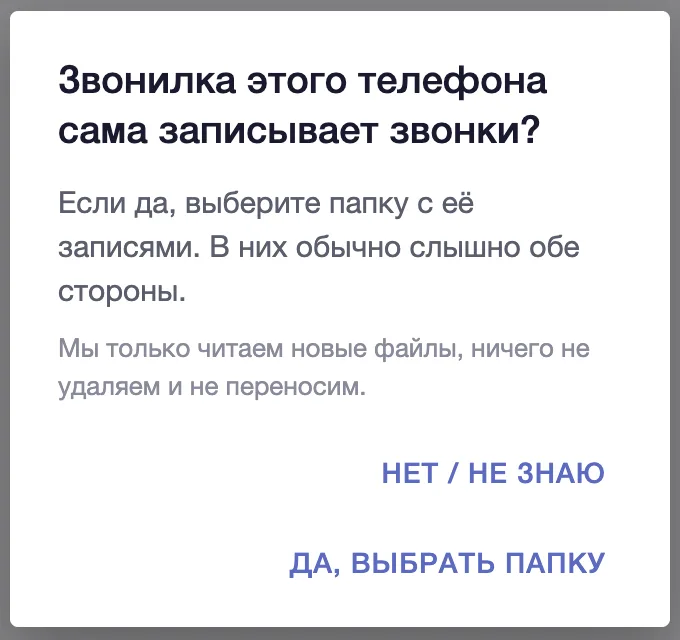
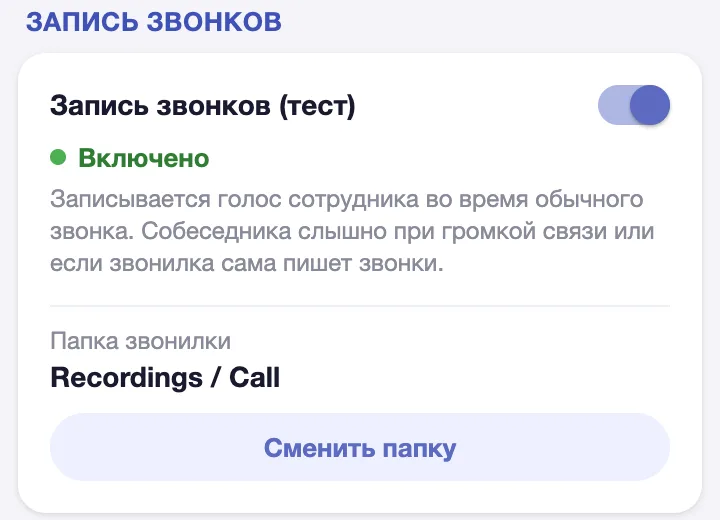
Where to look for automatic call recording:
- Samsung: Phone, the three-dot menu, Settings, Record calls, Auto record calls.
- Xiaomi, Redmi, POCO: Phone, Settings, Call recording.
- Huawei, Honor: the Record button during a call; automatic recording is in the call settings.
- Other models: look for "Call recording" in the dialer settings. If there is no such option, the dialer does not record calls and this method is not available on that phone.
Menu paths vary between firmware versions, so treat this as a hint rather than exact instructions for every model.
Where to listen to recordings and how to check that it works
Call recordings are in the device card under "Audio", on the "Calls" tab. Each recording shows the date, the number or contact name, the duration and the source label: "Employee voice" or "Dialer recording". Nearly silent recordings are marked "Silent". You can play a recording right in the dashboard or download it.
If something goes wrong, open the device's "Health" section. It explains in plain words what happened with the last call: for example, there is no microphone access, the microphone was busy, or the recording is waiting for an internet connection and will upload later. Next to it there is a tip on what to do.
The employee knows about the recording
Reptilicus is built for company-owned work phones, and employees know the device is monitored. During every recorded call, the employee sees a recording notification on the screen. This is a required part of the feature: the notification cannot be turned off from the dashboard, and we do not plan to add such a setting.
Before you turn recording on, set clear rules inside the company:
- tell employees in writing that calls on work phones are recorded, and get their signed acknowledgment;
- decide who in the company listens to recordings, for what purpose, and how long they are kept;
- use recording only on work devices and for work tasks: quality control of customer calls, resolving disputes, training new staff.
Call recording laws differ from country to country, and some places require the consent of everyone on the call. Check the rules where your company and your customers are, and talk to a lawyer if you are not sure. More on how the product works for teams: employee monitoring software features.
FAQ
Are messenger calls recorded?
No. In Reptilicus 2.0, recording works only for regular SIM calls.
Will I hear the other person?
Yes, if the speakerphone is on, or if the phone's dialer records calls on its own and its folder is selected in the app. Otherwise you will usually hear only the employee.
Why does the dashboard say "Not available on this model"?
The microphone recorded silence on several full calls in a row. This happens on some models and is not a fault. Try connecting the dialer's automatic recording using the steps above. The call log keeps working as before.
Do I need to do anything on the employee's phone?
To record the employee's voice, turn the feature on in the dashboard and update the app to version 1.2.5. Microphone access must be allowed on the phone. You need the phone in hand only to connect the dialer folder.
Will the employee see that a call is being recorded?
Yes. A notification is shown on the phone screen while recording.
What happens to recordings if the phone has no internet?
Nothing is lost. The recording is saved on the phone and uploads to the dashboard once the connection is back.
Try it
Call recording is available in Reptilicus 2.0 for Android starting with version 1.2.5. Download the app, link a work phone and turn on recording under "Audio". If something does not work, message the consultant in your dashboard or email support@reptilicus.net, and we will help you set it up.