How to Connect a Windows Computer to the Dashboard in 3 Minutes
Since September, Reptilicus shows not only your employees' phones but their computers as well. A computer connects to the same dashboard as the phones and sits right next to them. Below is a step-by-step guide: what you need on the PC side, how the pairing works, and what you will see in the dashboard a minute after installation.
- You need a computer running Windows 10 or 11 (64-bit), administrator rights and a 2.0 dashboard account.
- The installer is downloaded in the "Computers" section via the "Connect a computer" button.
- After installation, the program icon appears in the tray; you enter the pairing code from the dashboard there.
- The first data arrives within a minute: screenshots, apps, websites, activity and idle time.
- Phones and computers share one device pool, and the first 24 hours after pairing are free.
What you need before you start
- Windows 10 or 11, 64-bit edition. The program will not run on older systems.
- Administrator rights on that computer. The installer adds a system service, so installation will not go through under a regular user account.
- A 2.0 dashboard account at cabinet.reptilicus.net. If you do not have one yet, registration takes a minute: create a dashboard.
- Internet access from that computer. Data goes to the dashboard over HTTPS, so nothing will show up without a connection.
You do not need a separate computer for setup: you can download the installer on any device and run it on the PC you want to connect.
Step 1. Open the "Computers" section and download the installer
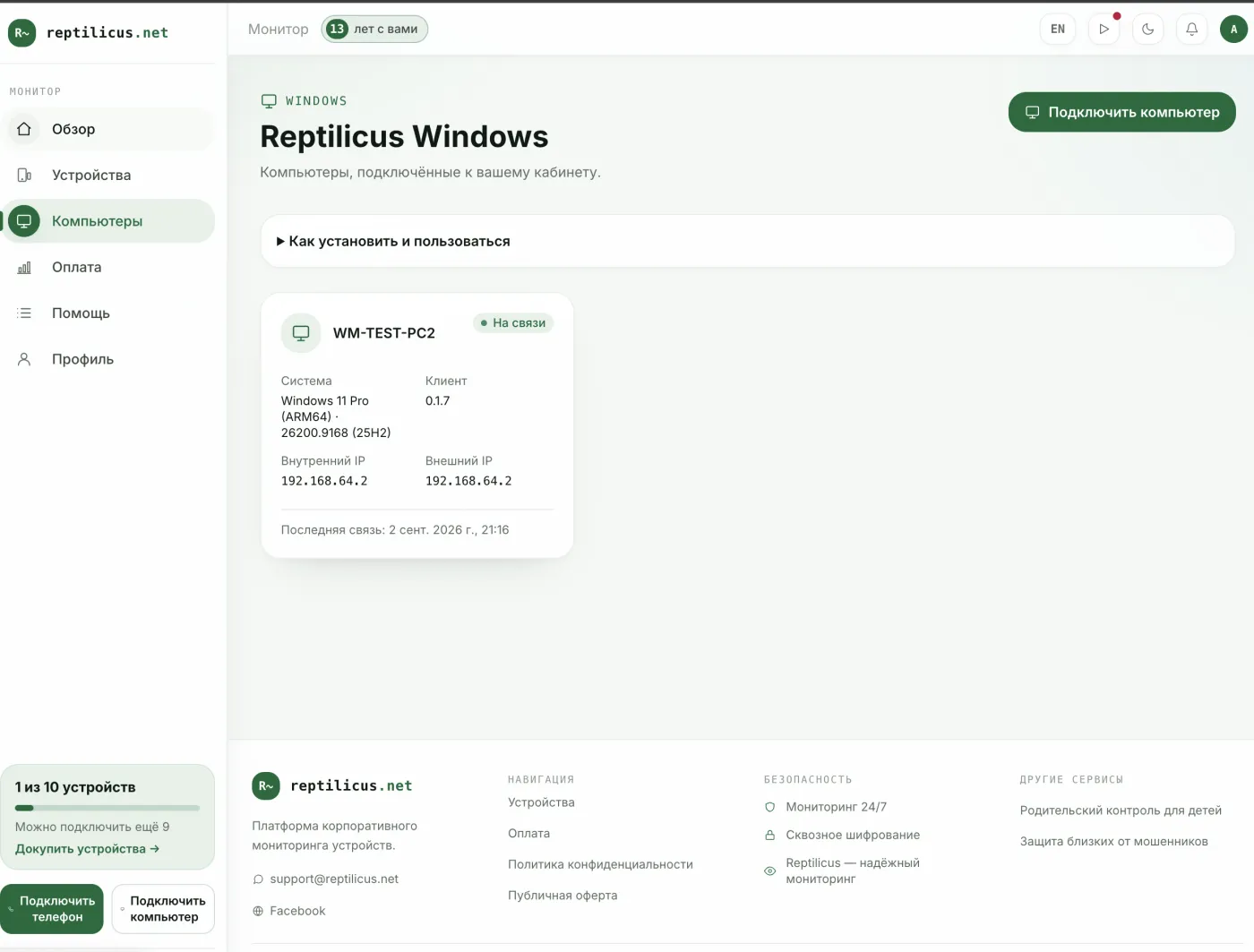
Log in to the dashboard. In the left menu, next to "Devices" where the phones live, there is a "Computers" section. Inside, click "Connect a computer". A window with two steps opens: the first has a button to download the installer (an .msi file), the second shows the pairing code.
Download the installer and move it to the target PC any way you like: a USB stick, a shared folder, or a message to yourself. If you are an administrator with several computers to set up, the same window offers a silent command-line installation (msiexec /qn) with the dashboard address already filled in. That way you can roll the program out to several machines without visiting each one.
Step 2. Install the program and enter the pairing code
Run the installer on the work PC. Installation is standard: a few screens, a "Next" button and an administrator confirmation. The program installs like any regular application: it is visible in the list of installed programs, in the Start menu and in the tray. There is no need to hide it, because monitoring of work computers is done with employees notified anyway.
After installation, the Reptilicus icon appears next to the clock. Open it and go to the "Account" tab. Now go back to the dashboard: the second step of the "Connect a computer" window shows a six-digit pairing code. Enter it in the application on the computer. The code is single-use and valid for 10 minutes; if it has expired, close and reopen the window, and the dashboard will issue a new one.
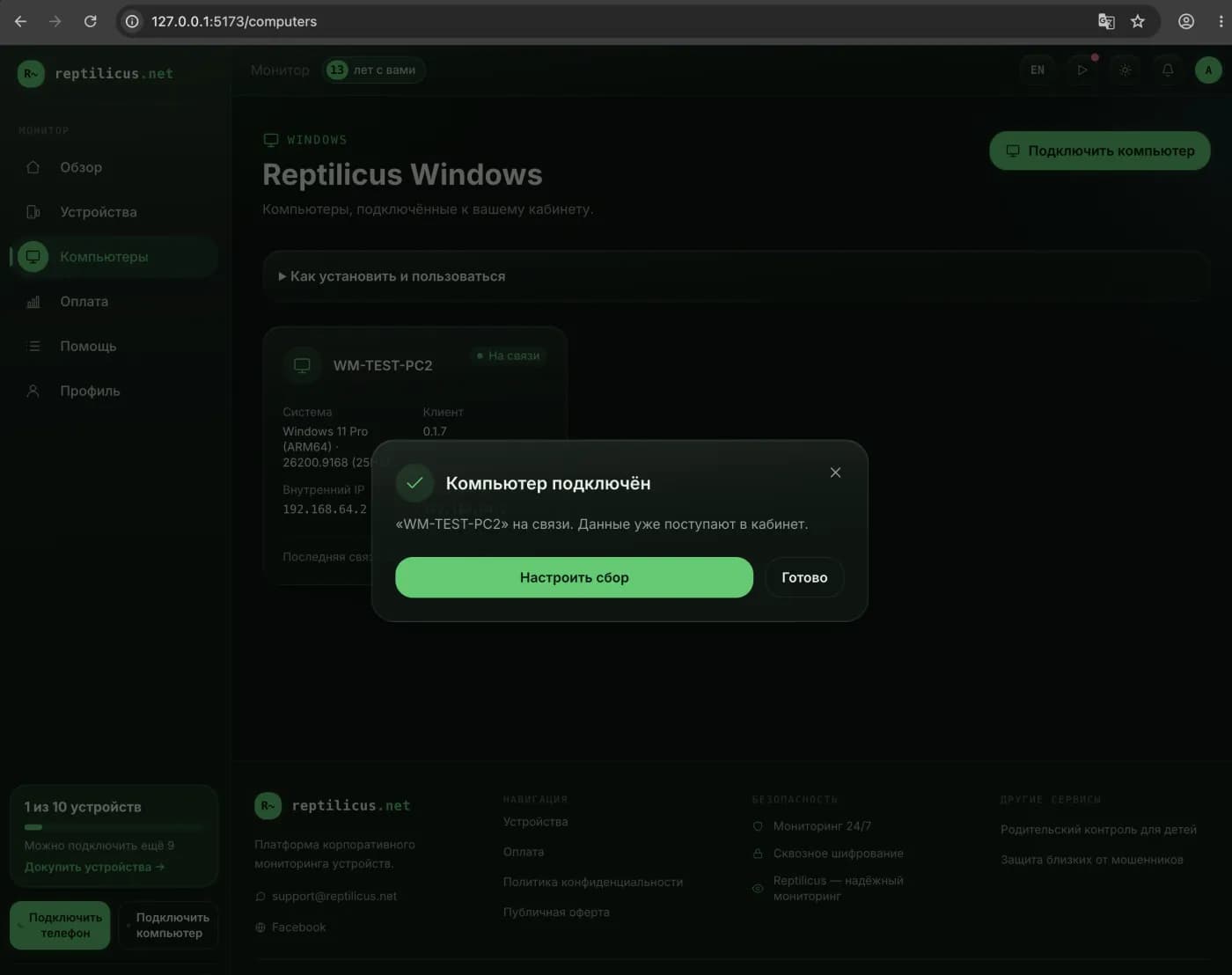
Nothing needs to be refreshed by hand: the dashboard page detects the connection itself and shows a "Computer connected" message with the PC name.
Step 3. First data within a minute
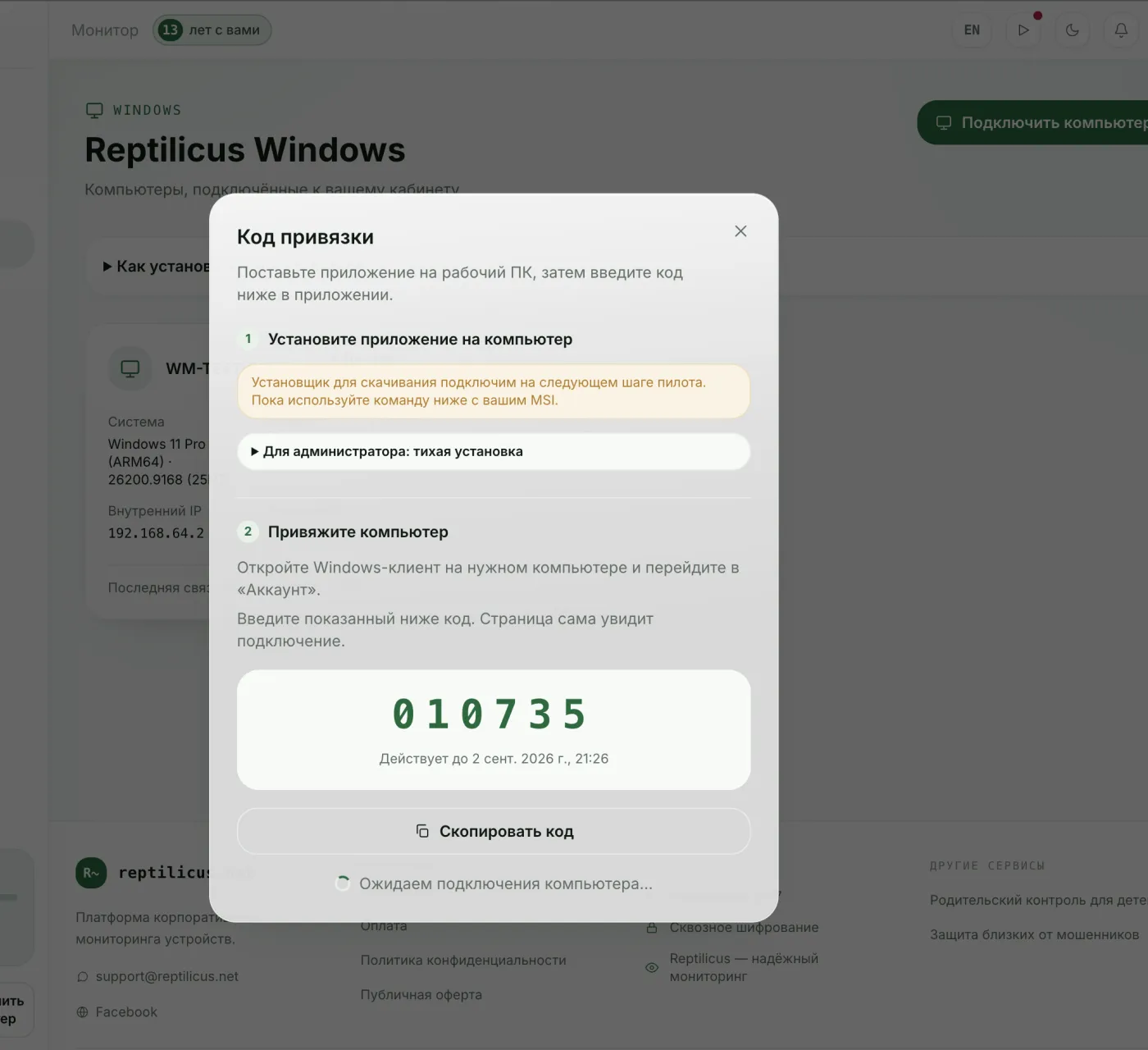
Right after pairing, the program contacts the dashboard and then checks in every few dozen seconds. A card appears in the "Computers" section: PC name, Windows version, internal and external IP address, and the time of the last check-in. You can rename the computer with the pencil icon, so that instead of "DESKTOP-1A2B" you see something like "Accounting, Maria".
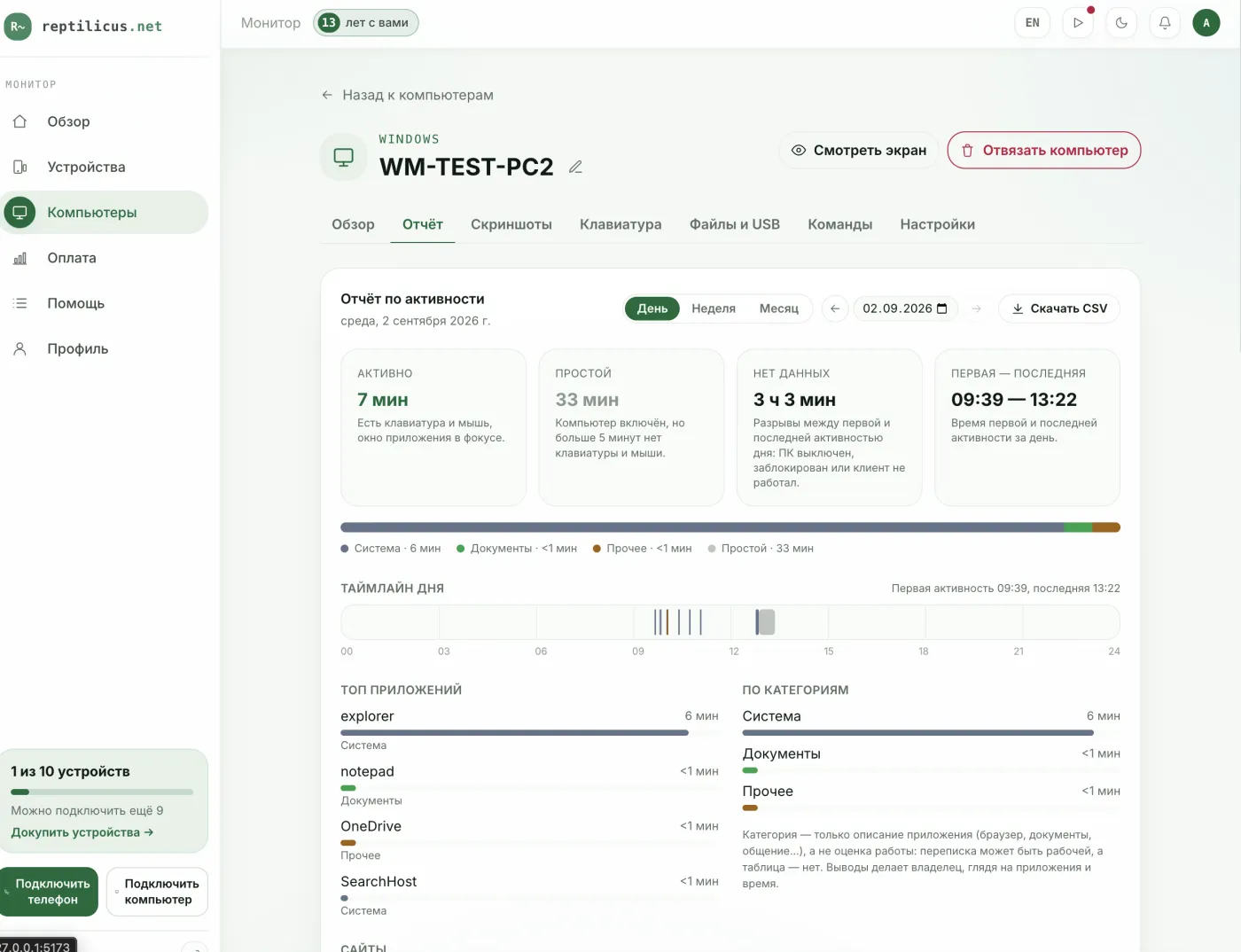
Open the card. Inside there are tabs: Overview, Report, Screenshots, Keyboard, Files & USB, Commands, Settings. Here is what they show:
- Screenshots by day. A timeline of screen captures with timestamps, easy to browse for any given day.
- Apps and time spent in them. Which applications were opened and how many minutes each was in focus, broken down by category.
- Websites. Which addresses were opened in the browser and for how long.
- Typed text and clipboard. What was typed and copied, tied to the window it happened in.
- Files, printing and USB. What was downloaded, sent to the printer, and which USB drives were plugged in.
- Activity and idle time. When someone was working at the computer, when it sat switched on but unused, and when it was off.
Clicking an application in the report opens a window for that app only: its screenshots, typed text and launches. In a minute you can see what happened in a specific task rather than across the whole day.
Device limit and pricing
Phones and computers count towards a shared device pool in your plan. The counter in the bottom left corner of the dashboard shows how many devices are connected and how many more you can add. If you run out of slots, you can buy additional device packs; there is no separate plan for computers.
The first 24 hours after pairing a computer are free: data flows in, you can look at everything and only then decide whether to continue. Autumn prices for the 2.0 subscription are valid until 30 November. Current amounts are shown in the "Payment" section of the dashboard, as they depend on your country and currency.
Is it legal
Reptilicus for Windows is designed for company-owned work computers. Employees must be informed about monitoring: a clause in the employment contract or an internal policy they have read. The program is visible in the system, does not disguise itself and does not pretend to be something else. Installing it on other people's personal computers is not allowed, and that is not the scenario it was built for. For more on setting up monitoring properly, see our article on computer monitoring software.
If the computer will not connect
- No administrator rights. The installer closes silently or asks for a password you do not have. Ask your administrator to install the program or grant rights on that PC.
- Antivirus or SmartScreen. The installer is new, and Windows may show a SmartScreen warning. Click "More info" and then "Run anyway". If your company runs a corporate antivirus, ask the administrator to add an exclusion for the program before installing.
- No network or a proxy. The program needs access to cabinet.reptilicus.net over HTTPS. If office internet goes through a proxy or a firewall, allow that address.
- Wrong or expired code. The code is valid for 10 minutes and must be entered exactly, digit by digit. Request a new one in the dashboard and enter it again.
- Still not working. Write to support@reptilicus.net with the computer name, the Windows version and what exactly the application shows. We will reply and sort it out.
Frequently asked questions
Can I connect several computers?
Yes. Each computer is paired with its own code and gets its own card in the "Computers" section. All of them count towards the shared device pool together with the phones.
Will the employee see the program?
Yes. The program is visible in the list of installed applications, in the Start menu and in the tray. That is how it should be: monitoring of work computers is done openly, with employees notified.
What happens if the computer is off or loses internet?
When the computer is off, there is no data, and the report marks that interval as "no data". During a short network outage the program accumulates events and sends them once the connection is back.
How do I disconnect a computer from the dashboard?
The computer card has an "Unbind computer" button. The program itself can be removed the usual way via "Installed apps" in Windows.
Summary
Connecting a work computer to Reptilicus takes three minutes: download the installer in the "Computers" section, run it on the PC and enter the pairing code. From there the dashboard shows screenshots, apps, websites and activity right next to your employees' phones. The first 24 hours are free, so you can test everything on one computer today.

Reptilicus for Windows
Screenshots, apps, websites and computer activity in one dashboard. Phones and PCs together. First 24 hours free.
Create a dashboard — the Windows installer will be in the “Computers” section