How to Take a Screenshot on a Computer and Set Up Automatic Screenshots
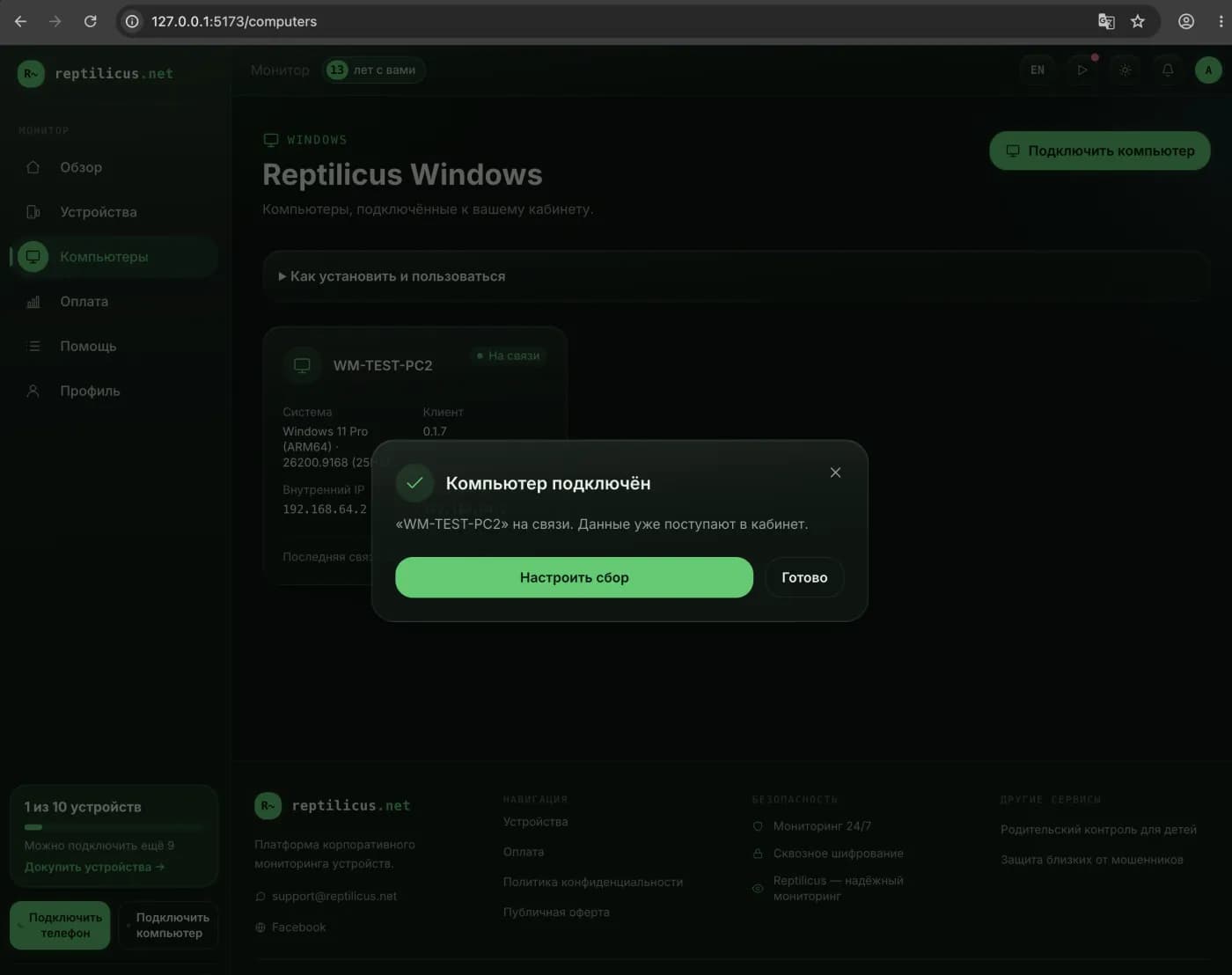
A screenshot is the fastest way to capture what's happening on a computer: save a conversation, show an error to support, or make a note from a document. And if screenshots are taken regularly and automatically, they turn into a handy activity log — for example, to see what a child is doing at the home PC or how work is going on a company computer.
Let's go through every working way to take a screenshot in Windows — from hotkeys to automatic scheduled snapshots.
- The PrintScreen key copies the entire screen to the clipboard; Alt+PrintScreen copies only the active window.
- Win+Shift+S launches the Snipping Tool and lets you select any area.
- Win+PrintScreen instantly saves the snapshot to the "Pictures → Screenshots" folder.
- For ongoing monitoring, automatic screenshots are more convenient — a dedicated program takes them on a schedule.
Hotkeys for a screenshot in Windows
- PrintScreen (PrtScn) — copies the entire screen to the clipboard. Then paste (Ctrl+V) into Paint, Word, or a chat.
- Alt + PrintScreen — a snapshot of the active window only.
- Win + PrintScreen — saves the file straight to "Pictures → Screenshots."
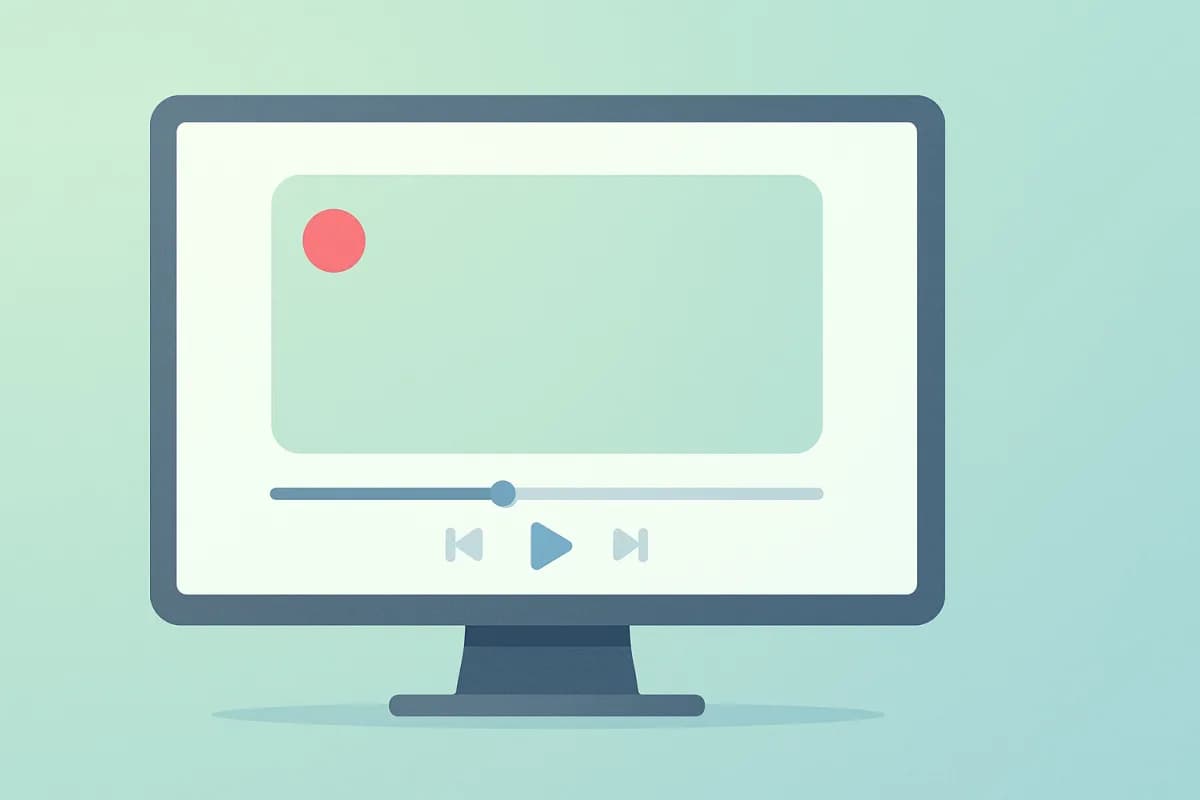
- Win + Shift + S — opens the Snipping Tool bar: you can select a rectangle, a window, or the whole screen, and the snapshot goes to the clipboard and to a notification for editing.
The Snipping Tool app
Windows 10 and 11 include a built-in Snipping Tool app. Find it via search in the Start menu. It can capture an area, a window, or the entire screen, add a delay before the snapshot, and annotate and crop the result. It's the most flexible built-in method when you need one clean screenshot.
Where screenshots are saved
Snapshots taken with Win+PrintScreen are in the "Pictures → Screenshots" folder. Snapshots from the clipboard need to be pasted and saved manually. The Snipping Tool lets you choose a folder when saving.
Automatic screenshots: when one snapshot isn't enough
Manual screenshots are great for one-off tasks. But if you need to understand the picture over a whole day — what was done on the computer, which programs and sites were opened — automatic screenshots are more convenient: the program takes snapshots at set intervals on its own and files them into a day-by-day history.
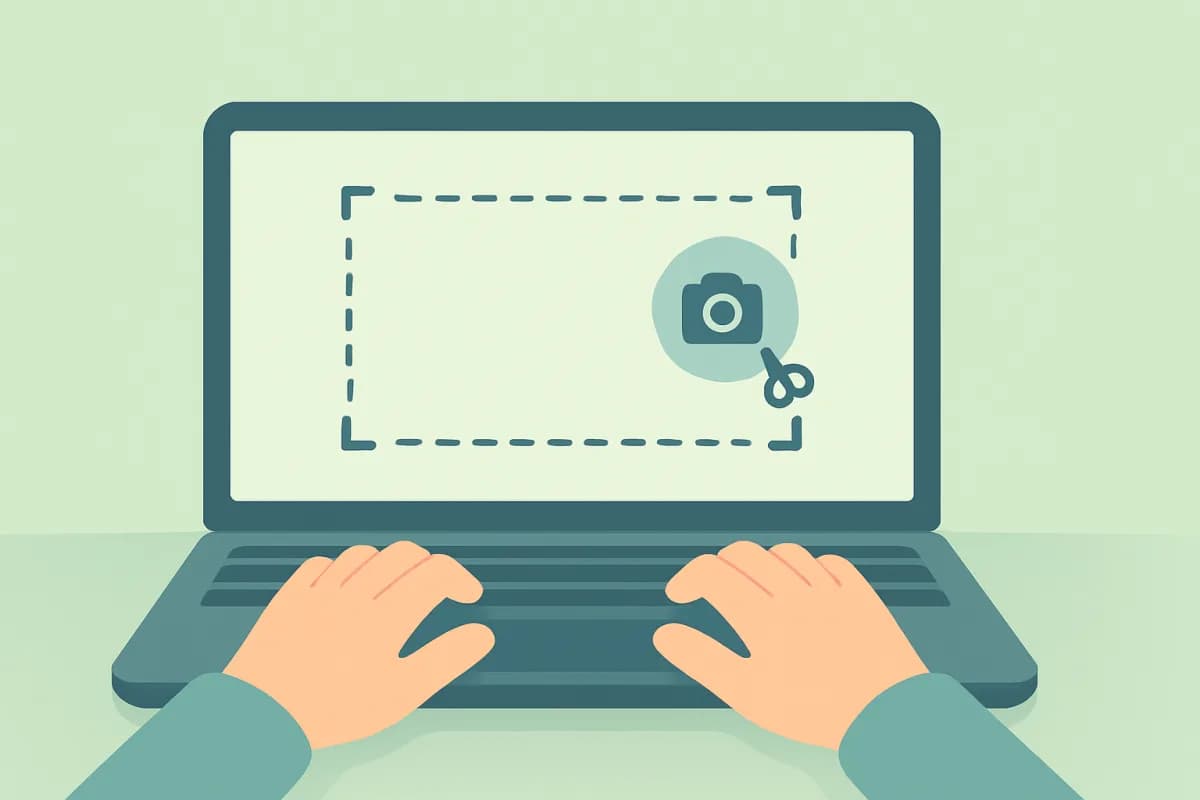
That's how Reptilicus for Windows works, for example. You install the app on the computer, and in your personal account you see screen screenshots with a day-by-day history, and alongside them — which programs were used and for how long, and which sites were opened. It's handy for keeping an eye on a child's home PC or for monitoring work on a company computer (employees are notified about it).
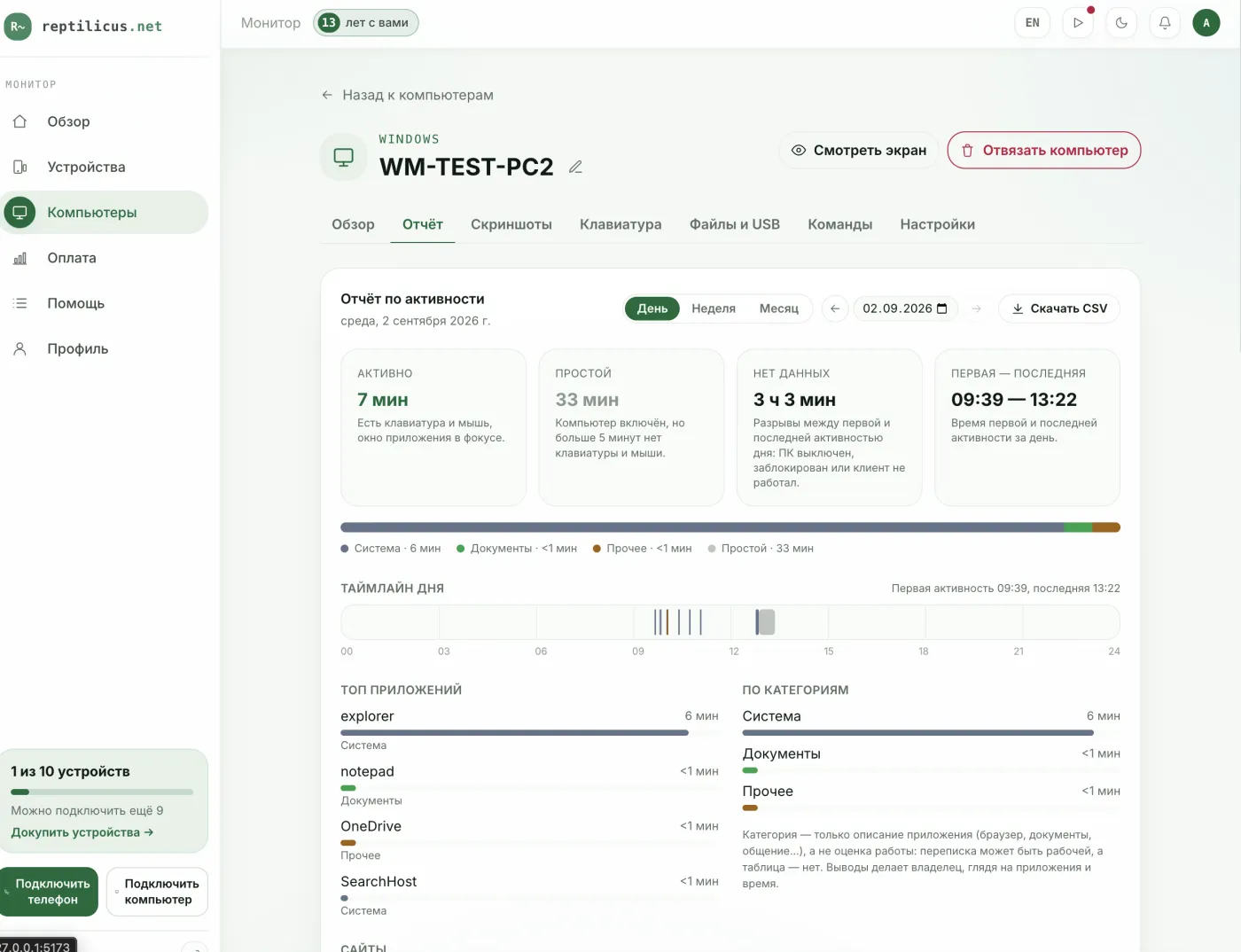
How to turn on automatic screenshots
- Install the program on the computer you need and pair it using the code from your account.
- In the settings, set the screenshot interval and the collection schedule.
- Open your account from your phone or another PC — the snapshots will build up in the history.
Frequently asked questions
Why isn't PrintScreen working?
On some laptops you need to press Fn + PrintScreen. The key may also have been intercepted by a third-party program — check whether the snapshot pastes into Paint.
How do I take a screenshot with scrolling for a long page?
Built-in tools capture only the visible part. For long pages, use your browser's screenshot feature or a separate program.
Can screenshots be taken automatically without a child noticing?
Technically yes, but it's better to agree on it openly. For a family it's care and supervision, not secret surveillance; only install programs on your own family's devices.
Conclusion
For a one-off snapshot, hotkeys or the Snipping Tool are enough. But if you need an ongoing log of what's happening on the computer, turn on automatic screenshots with a separate program — for example, Reptilicus for Windows, where snapshots and activity are gathered into a convenient dashboard.

Reptilicus for Windows
Screenshots, programs, sites, and computer activity in one dashboard. Phones and PCs together. First 24 hours free.
Create a dashboard — the Windows installer will be in the “Computers” section