Parental Controls on a Windows Computer: Built-in Tools and the Best Software
A computer means school, games, and communication for a child — but, unfortunately, risks too: unsuitable sites, unchecked hours in front of the screen, accidental purchases, and strangers in chats. Parental controls on a Windows computer help you not to forbid, but to see the full picture and gently guide it: how much time your child spends at the PC, what they do, which sites they open, and what they install.
In this article we'll go through it in order: what the built-in Windows parental controls can do, how to turn them on in a few minutes, where their ceiling is, and which third-party programs fill those gaps. No scare tactics and no "spyware" extremes — only what actually works for a family.
- Windows 10 and 11 include free parental controls — Microsoft Family Safety: time limits, site filtering, and activity reports.
- They require Microsoft accounts for both parent and child, and the child must sign in under their own account.
- The built-in controls are enough for basic needs; their weak spots are being bypassed via a second browser or another account, and the lack of screenshots and a detailed log.
- Third-party programs give you more: screen screenshots, a history of apps and sites, active time, and alerts.
- You should install controls on your own child's computer and do it honestly — it's care, not surveillance.
What parental controls on a computer are
Parental controls are a set of tools that help a parent understand and limit how a child uses the computer and the internet. Usually this comes down to four things: screen-time limits, filtering of sites and apps, activity reports, and purchase restrictions. The goal isn't a total ban, but reasonable boundaries and an understanding of what your child does at the PC.
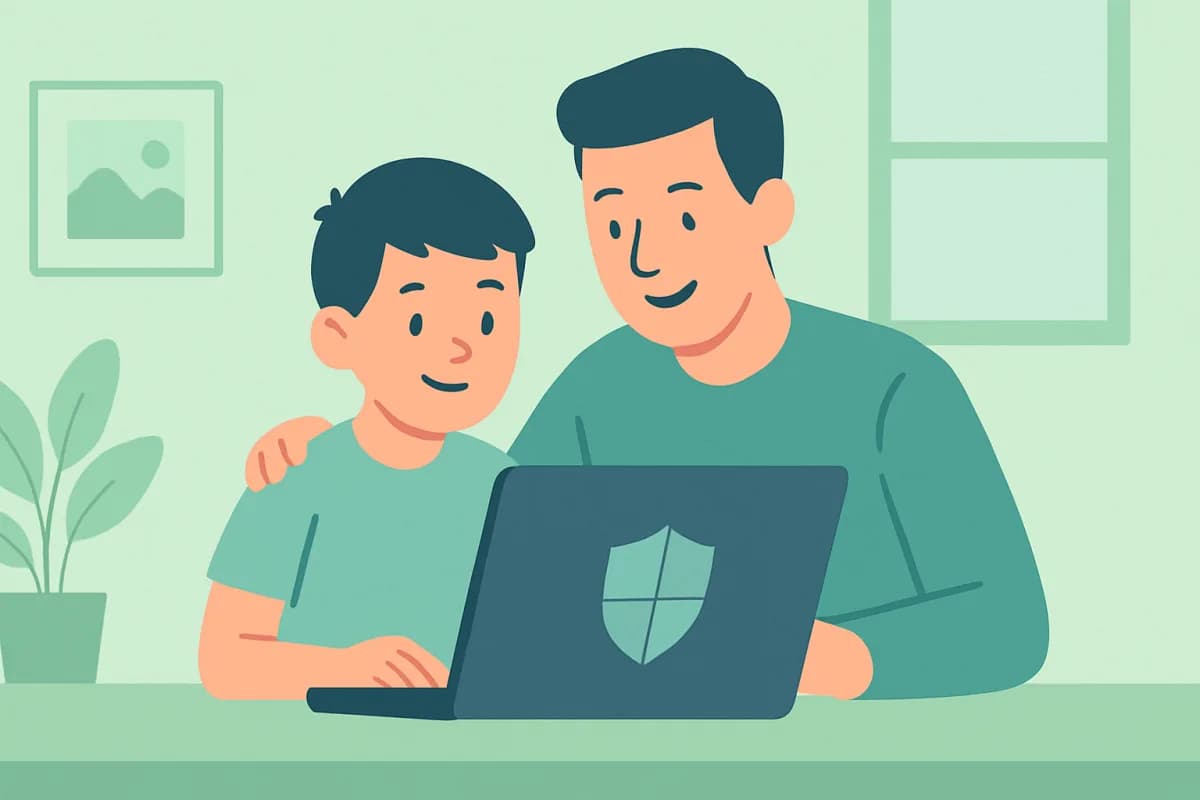
One thing matters from the start: controls work better when they're out in the open. A child who knows about the rules and limits takes them more calmly than one who one day discovers secret surveillance. So parental controls are about trust and agreements, and the technical tools only help you keep them.
Built-in Windows parental controls: Microsoft Family Safety
In Windows 10 and Windows 11 parental controls are built in and free — the feature is called Microsoft Family Safety. It can limit computer time by day and hour, filter sites and apps by age, show activity reports, and require a parent's approval for purchases in the Microsoft Store.
The main requirement: both the parent and the child must have a Microsoft account, and the child must sign in to Windows under their own child account. Without that, the built-in controls won't work.
How to turn on parental controls in Windows 10 and 11: step by step
- Create a separate Microsoft account for your child (or use an existing child account).
- Open Settings → Accounts → Family and click "Add someone" → "Child."
- Send an invitation to your child's email and confirm it.
- Go to family.microsoft.com under your own account — that's the family management center.
- Set up what you need: screen time, content filters, app and game restrictions by age, and email reports.
- Make sure the child signs in on the computer under their own child account — otherwise the rules won't apply.
After that you'll get summaries: how much time your child spent at the PC, which apps and sites they opened, and you'll be able to change limits remotely through the website or the Family Safety phone app.
Limits of the built-in parental controls
Microsoft Family Safety covers the basics, but it has some notable weak spots worth being honest about:
- Bypassed by switching accounts. If the child signs in under a different (or local) account, the rules won't apply.
- Site filtering works mainly in Microsoft Edge. Some restrictions can be bypassed through a third-party browser.
- No screenshots or detailed log. You see summarized reports, but not what actually happened on the screen.
- Microsoft devices and services only. You need an online account and a constant connection to Microsoft services.
For younger children the built-in controls are usually enough. But if your child is older and tech-savvy, or it's important to you to see a fuller picture of their activity, the built-in tools fall short — and that's when people add third-party programs.
Third-party parental control software for Windows
Dedicated programs are installed on the computer and give you what the built-in controls lack: screen screenshots with history, a detailed log of apps and sites with timestamps, tracking of active time and idle periods, and alerts. They work regardless of which account the child uses or which browser they're in.
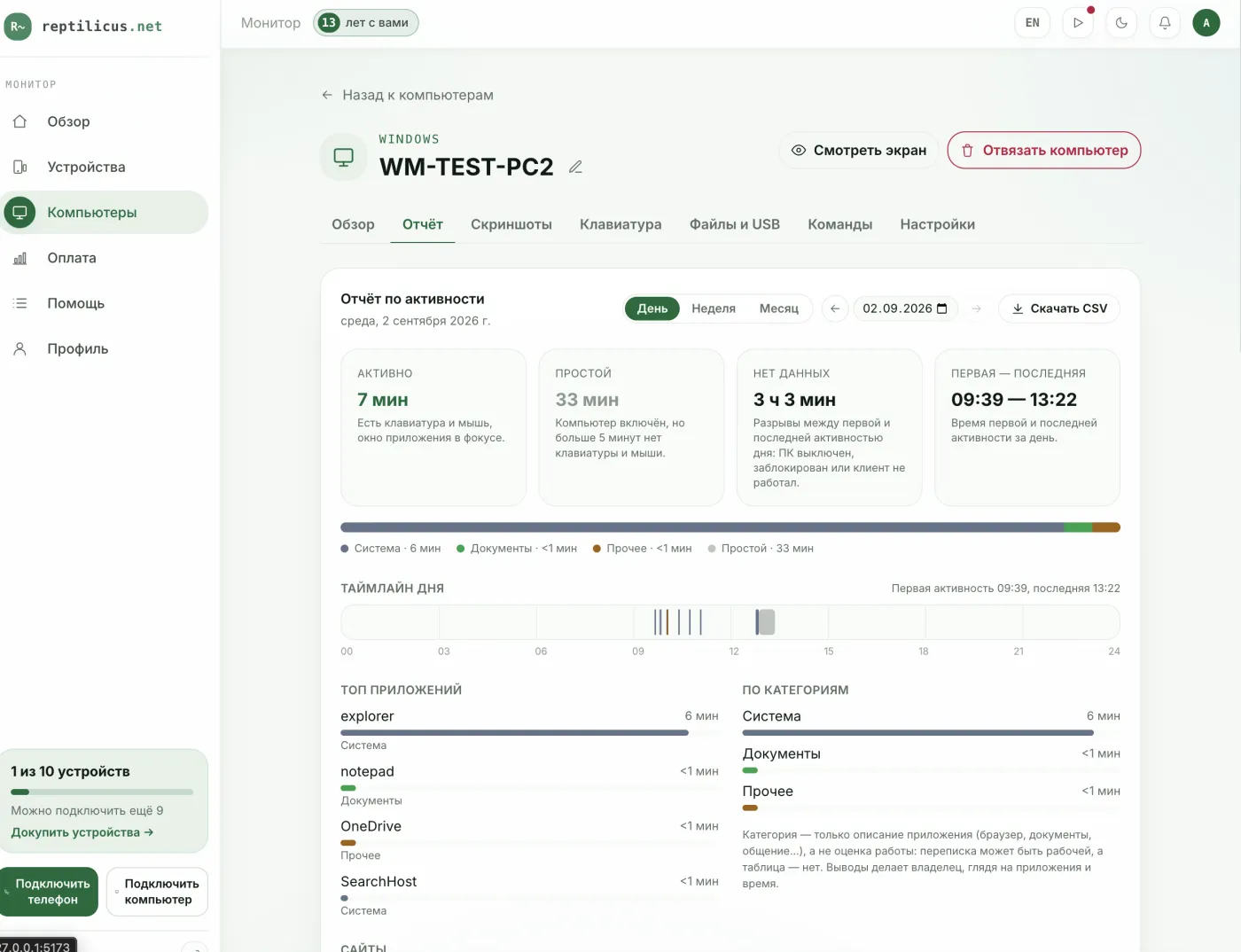
One such program is Reptilicus for Windows. You install a small app on your child's home computer and view the data in your personal account from any device: screen screenshots by day, which programs were used and for how long, visited sites, typed text, and activity and idle time throughout the day. That's handy when it matters not just to limit time, but to understand exactly what your child is doing at the PC.
Built-in controls or a third-party program: a comparison
| Feature | Microsoft Family Safety | Reptilicus for Windows |
|---|---|---|
| Screen-time limit | Yes | Data-collection schedule |
| Site filter | Yes, mainly in Edge | History of visited sites |
| Screen screenshots | No | Yes, with day-by-day history |
| App and time log | Summarized | Detailed, with active and idle time |
| Works without a Microsoft account | No | Yes |
| Phones and PCs in one dashboard | Partly | Yes, a shared device list |
A sensible approach is to combine them: turn on built-in Family Safety for time limits and age filters, and install a separate program for the full activity picture on the home PC.
How to set up parental controls on your child's computer in a few minutes
Using Reptilicus for Windows as an example:
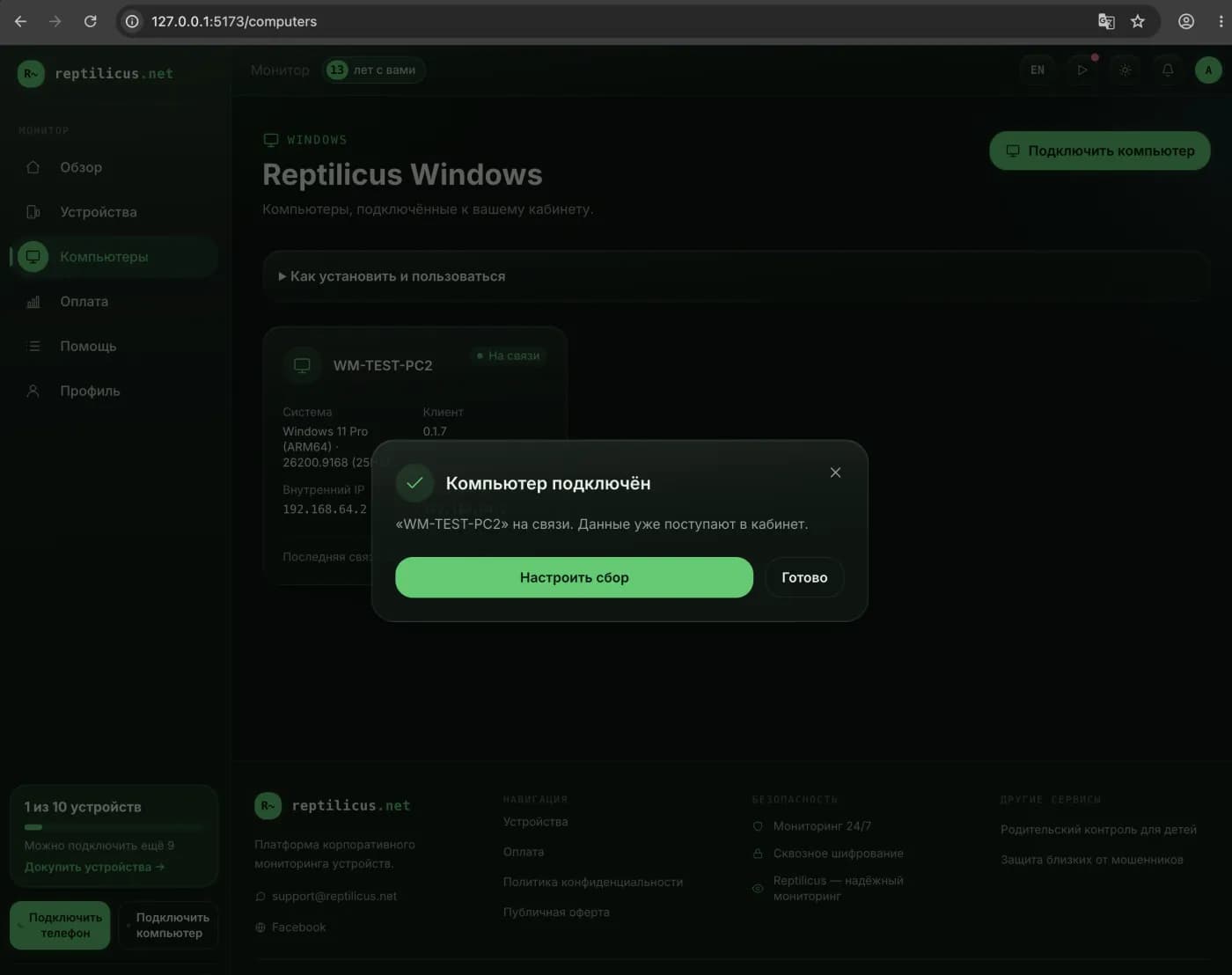
- Create a personal account and open the "Computers" section.
- Click "Connect a computer" and get a pairing code.
- Download the program and install it on your child's home computer.
- Enter the code — the computer will appear in your account and data will start coming in.
From then on you simply open your account from your phone or your own PC and see the activity. If there are also children's phones in the family, they show up next to the computers in a single device list — handy for keeping everything in one place.
Ethical and legal: control is care
Parental control over your own minor child is legal and natural: parents are responsible for their children's safety. But on a human level it's better when the control is open. Explain to your child why you're setting limits and keeping an eye on things, agree on the rules — that way it works as care and trust, not secret surveillance. Only install programs on your own family's devices.
Frequently asked questions
Does Windows have free parental controls?
Yes. Windows 10 and 11 include Microsoft Family Safety — it's free, can limit time, filter sites and apps, and send reports. It requires Microsoft accounts for both parent and child.
Can the built-in parental controls be bypassed?
Technically yes — for example, by signing in under a different account or using a third-party browser. That's why for older children the built-in controls are often supplemented with a separate program that works independently of the account and browser.
What's best to install for full control of a computer?
For basic limits, Family Safety is enough. If you need to see screen screenshots, a detailed history of apps and sites, and the day's activity, people install a third-party program — for example, Reptilicus for Windows, where all of this is available in your personal account.
Will parental controls slow down the computer?
No. Both the built-in tools and lightweight control programs put almost no load on the system: they run in the background and send data in small portions.
Conclusion
Start with built-in Microsoft Family Safety — it's free and covers the basics: time limits, age filters, and reports. If your child is older or you need the full picture of what's happening on the home PC, add a third-party program with screenshots and a detailed log. And most importantly — keep the control open: agreements work better than bans, and technical tools only help you keep them.

Reptilicus for Windows
Screenshots, programs, sites, and computer activity in one dashboard. Phones and PCs together. First 24 hours free.
Create a dashboard — the Windows installer will be in the “Computers” section