Screen Recording on a Computer: Software and How to Set It Up in Windows
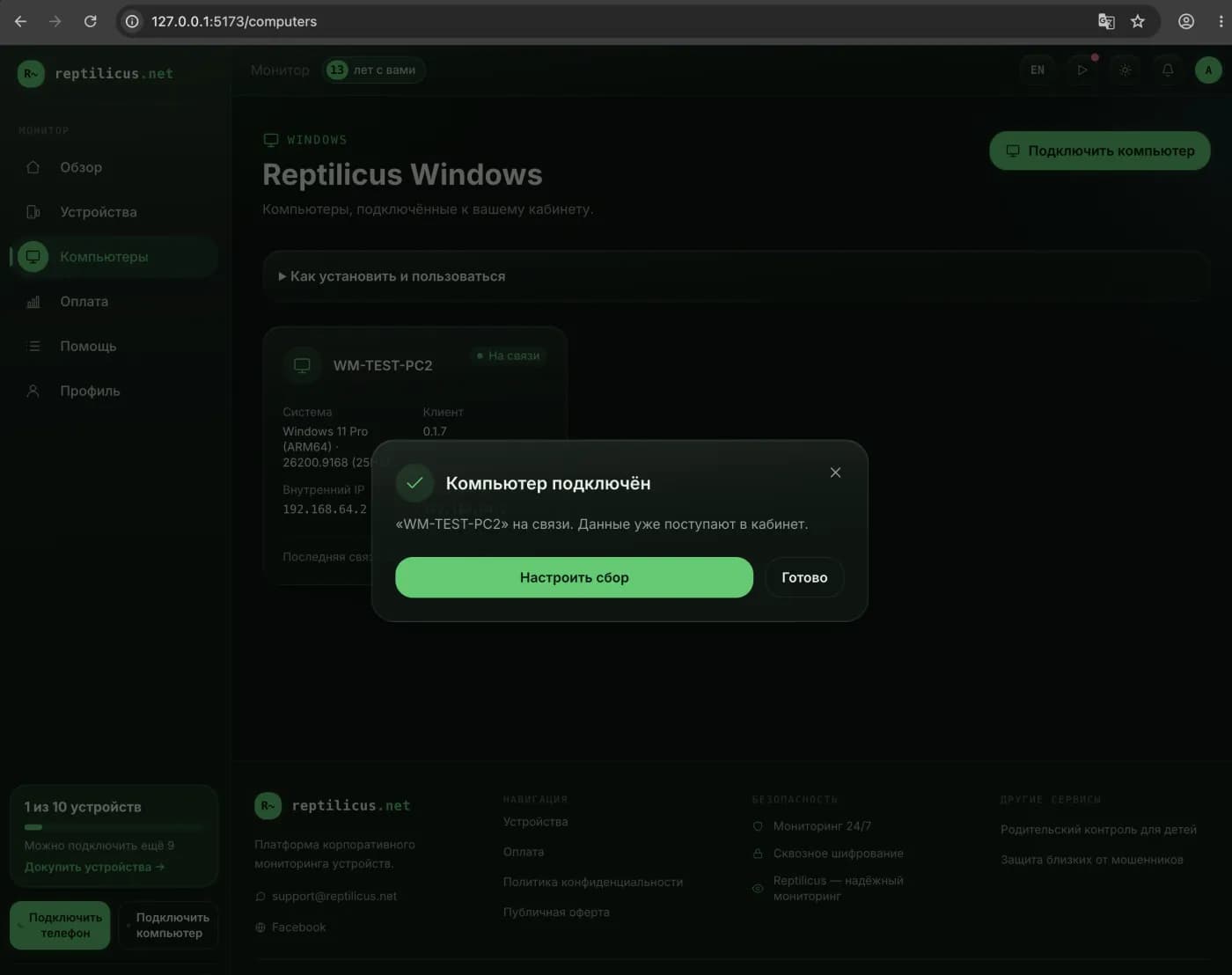
Recording a computer screen can be useful for all sorts of reasons: making a video tutorial, saving a webinar, showing a problem to support. And when it comes to monitoring — for example, keeping an eye on a child's home PC or on work done on a company computer — what matters isn't one long video, but a clear log of what happened on the screen throughout the day.
Let's look at the built-in screen recording tools in Windows, third-party software, and how to keep a history of screen activity without gigantic video files.
- Windows 10 and 11 have built-in screen recording via Xbox Game Bar (Win+G).
- For advanced tasks people use OBS Studio and other recording programs.
- Video takes up a lot of space; for activity monitoring, scheduled screenshots plus a log of programs and sites are more convenient.
- You should set up monitoring on your own devices and do it honestly.
Built-in screen recording in Windows: Xbox Game Bar
The simplest way to record the screen without installing any software is Xbox Game Bar. Press Win + G and a bar opens with a record button. You can record an app window with system and microphone sound. Finished clips are saved to "Videos → Captures." This method suits short recordings and tutorials.
How to record the screen via Game Bar
- Press Win + G.
- In the "Capture" block, press the start-recording button (or Win + Alt + R).
- Stop the recording with the same button — the file will appear in the "Videos → Captures" folder.
Screen recording software
When you need quality settings, recording from several sources, or editing, people turn to dedicated programs. A free and powerful option is OBS Studio: flexible scenes, recording, and streaming. There are also simpler paid editors with recording and trimming.
Activity monitoring: why video isn't always convenient
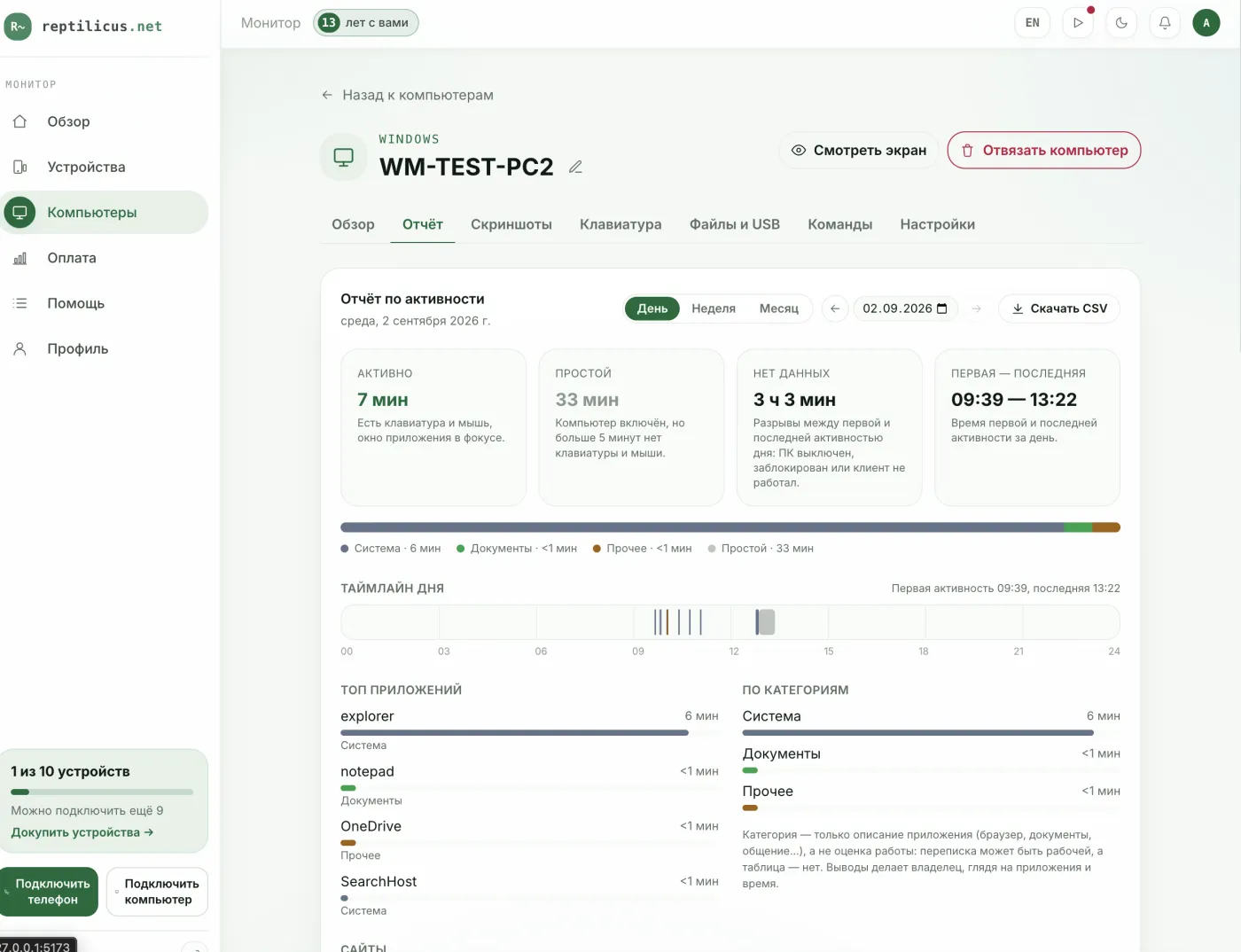
Continuous screen video for a whole day is dozens of gigabytes and awkward to review. If the task isn't "make a clip" but understanding what was done on the computer, it's more effective to keep a log: scheduled screenshots plus a list of programs and sites with timestamps.
That's how Reptilicus for Windows is built: instead of heavy video, you get screen screenshots in your account with a day-by-day history, and alongside them — which programs were used and for how long, visited sites, and activity and idle time. It's compact and clear — handy both for keeping an eye on a child and for monitoring work PCs (with employees notified).
Frequently asked questions
How do I record the screen with sound?
In Xbox Game Bar, enable microphone recording in the bar's settings; system sound is recorded by default. In OBS, audio sources are configured separately.
Game Bar won't record the desktop — why?
Built-in recording is meant for app and game windows and may not capture the desktop itself or File Explorer. For those cases, use OBS or a monitoring program with screenshots.
What should I choose for computer monitoring — video or screenshots?
For monitoring, scheduled screenshots and an activity log are more convenient: they take up little space and are easy to review, unlike hours-long video.
Conclusion
For a one-off screen recording, built-in Xbox Game Bar is enough; for complex tasks, OBS. But if you need ongoing, compact monitoring of what's happening on the computer, use screenshots and an activity log instead of heavy video — for example, in Reptilicus for Windows.

Reptilicus for Windows
Screenshots, programs, sites, and computer activity in one dashboard. Phones and PCs together. First 24 hours free.
Create a dashboard — the Windows installer will be in the “Computers” section