Monitoring your child online on the computer: how to keep them safe without total bans
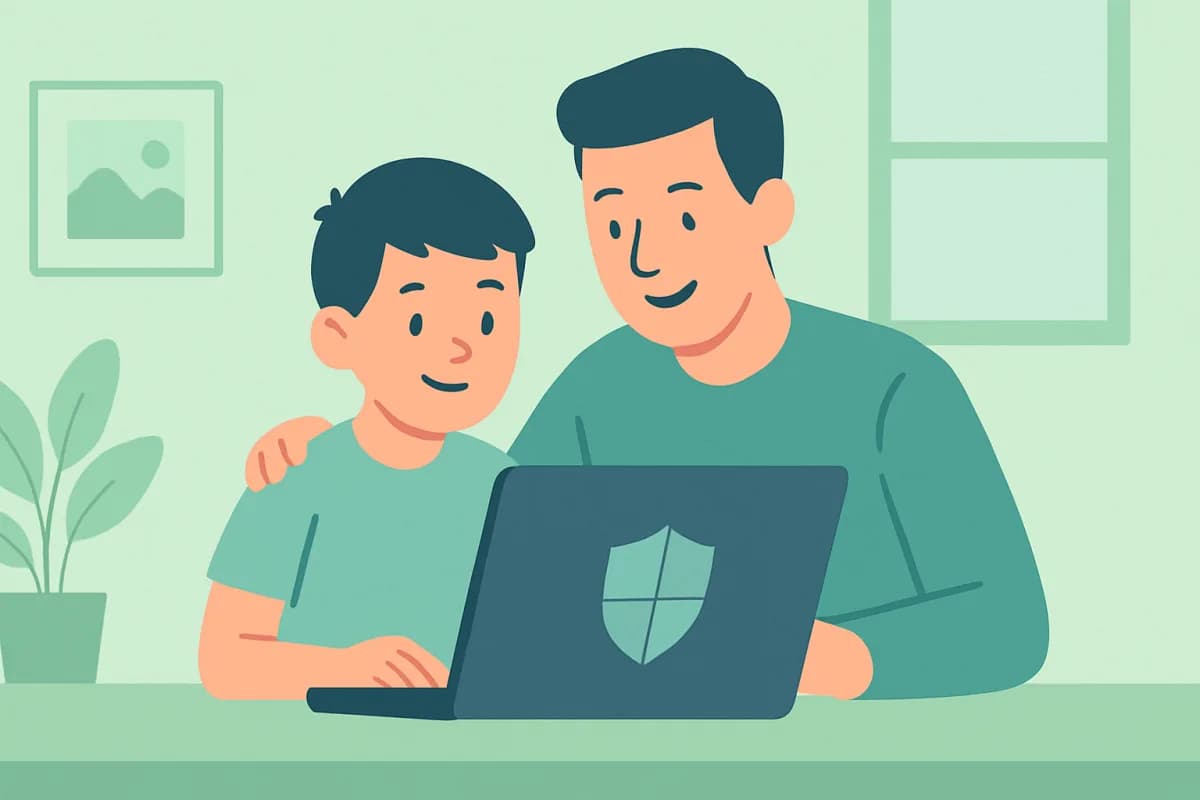
For a child, the internet is opportunities and risks at once: useful resources sit next to unsuitable content, strangers in chats and scammers. Banning it entirely is pointless and harmful, but reasonable monitoring of your child online on the computer helps keep them safe while preserving trust.
- Start with a conversation and rules; technical tools are there to help, not to replace them.
- Basic tools: site filtering, time limits, browsing history.
- For the full picture — a program with site history and screen captures.
- Keep control open: the child knows about the rules and the oversight.
Where to start: the conversation matters more than the software
The most reliable protection is trust and an understanding of the risks. Explain simple rules to your child: don’t click suspicious links, don’t share personal details, tell you about unpleasant situations. Technical tools reinforce these agreements but don’t replace them.
Tools for online monitoring
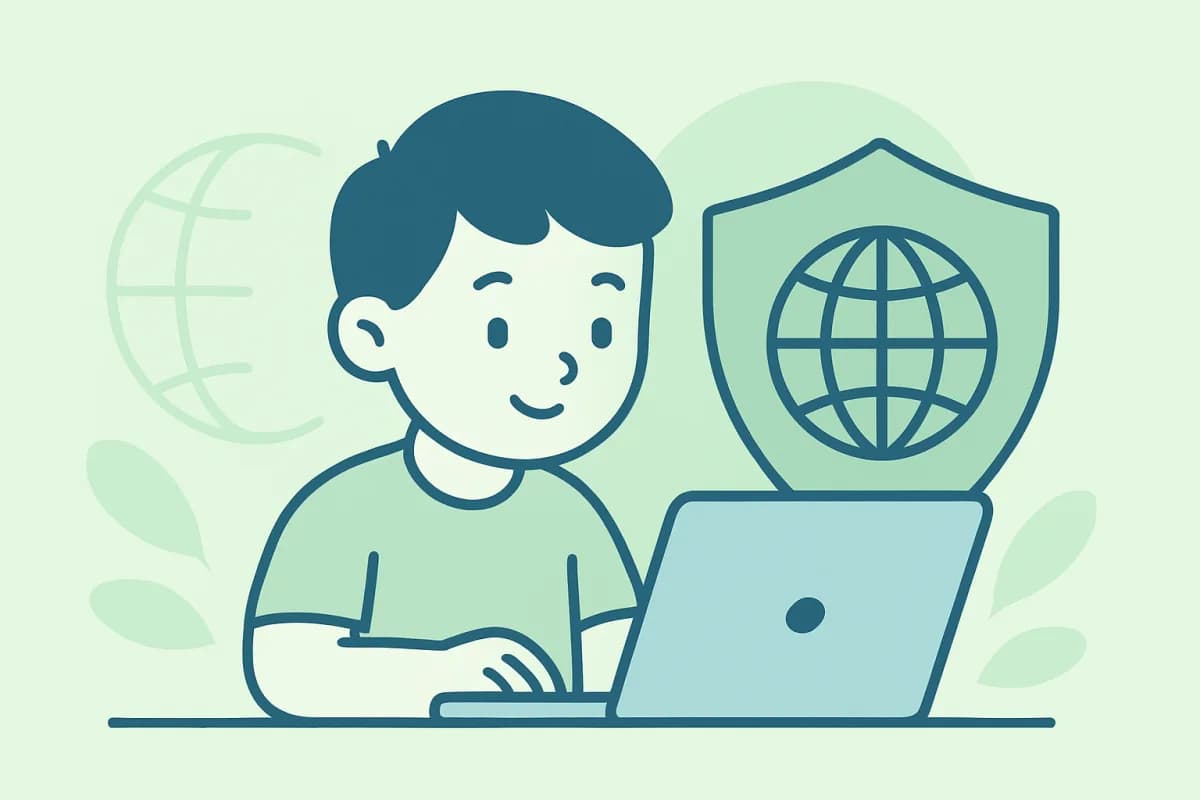
- Site filtering. Restricting access to adult and dangerous content by age.
- Time limits. Capping hours at the computer and online.
- Browsing history. Which sites your child opened — so you can spot warning signs in time.
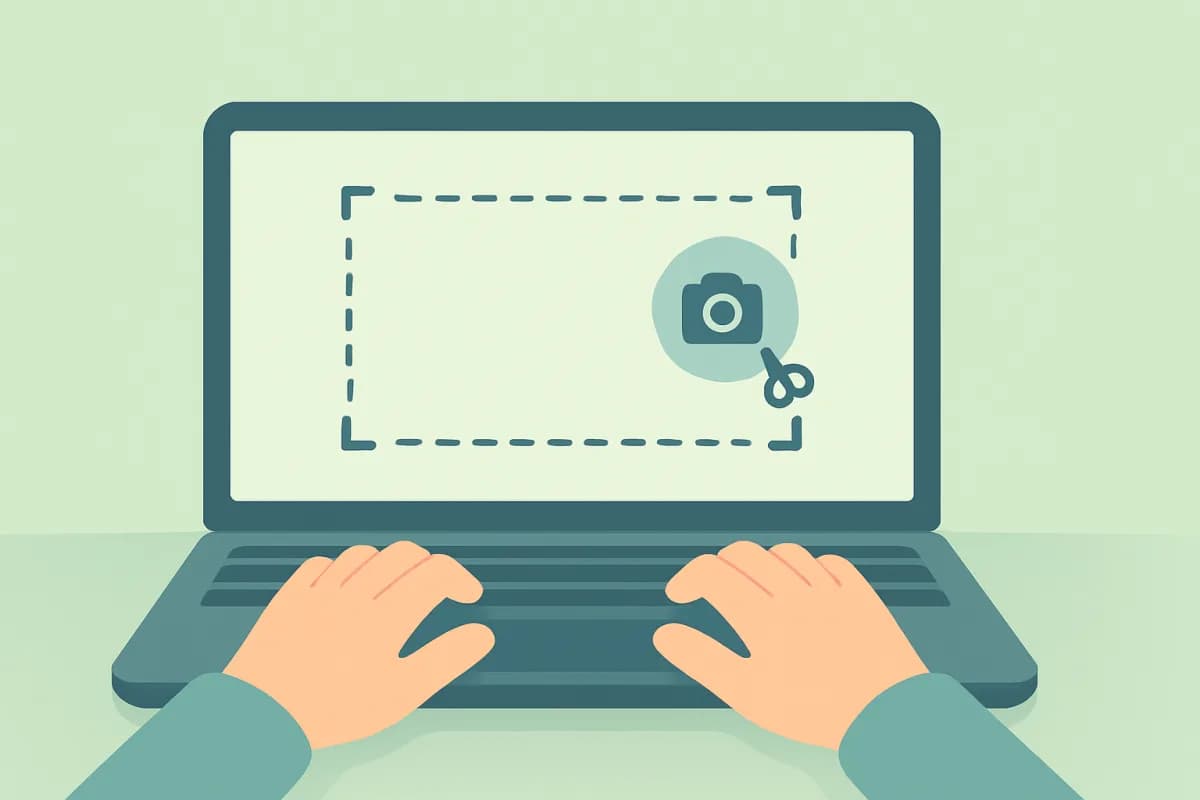
- Screen captures. A clear view of what happened when the site history isn’t enough.
Built-in tools and third-party programs
Windows has Microsoft Family Safety with content filtering and limits — enough for younger children, but the filter works mainly in the Edge browser and is bypassed by switching browsers. For older children, people add a third-party program that keeps a site history and screen captures independently of the browser and account.
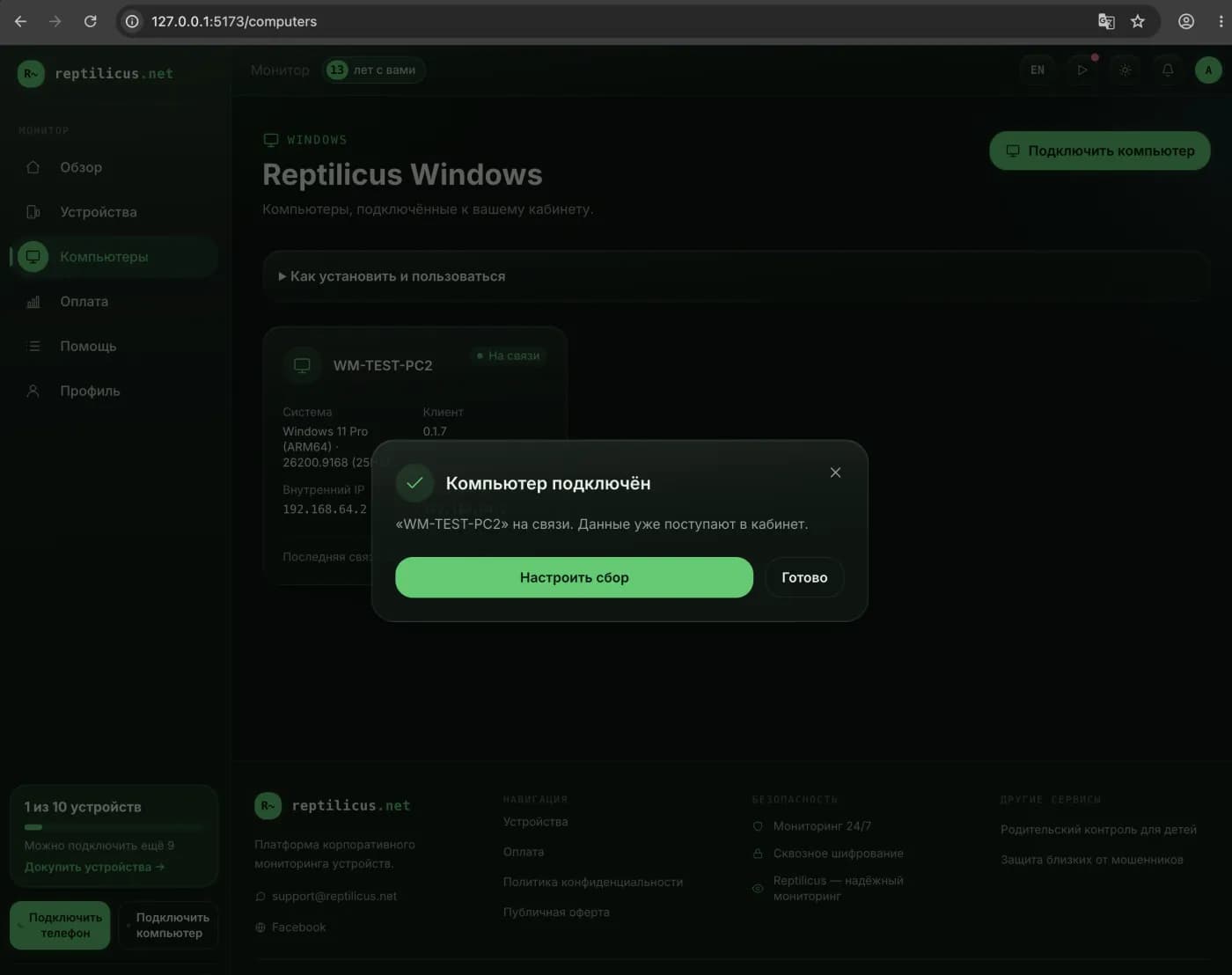
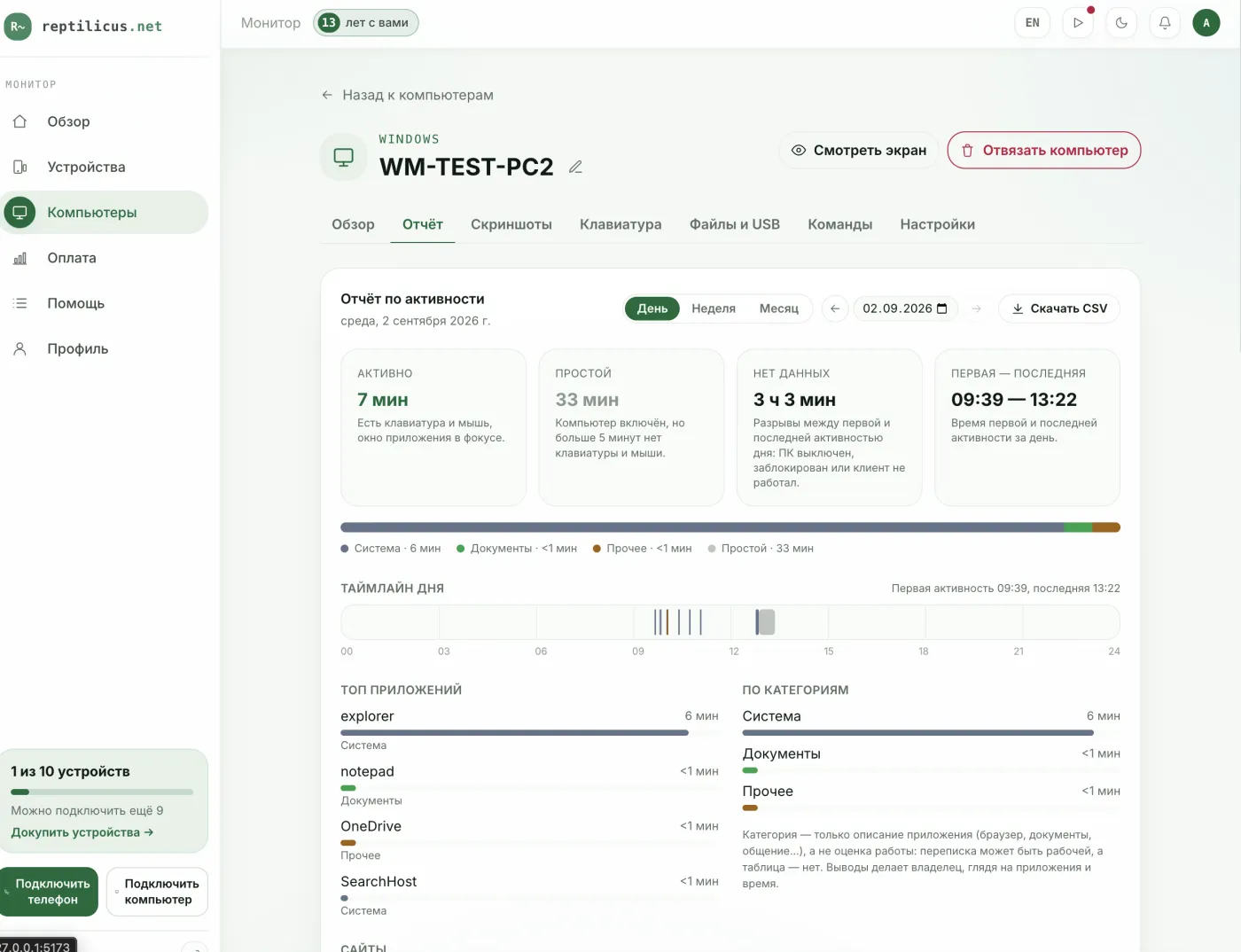
Example: how it looks in Reptilicus for Windows
In Reptilicus for Windows, the dashboard shows visited sites, screen captures day by day and app history — so you understand what your child is doing online and can have a timely talk if something looks off. It’s all in one dashboard, together with your children’s phones.
Warning signs worth paying attention to
- Sudden secrecy — the child hides the screen when you appear.
- Unfamiliar contacts and chats, requests to “tell no one”.
- Suspicious sites, gambling, questionable purchases.
Frequently asked questions
How do I restrict site access for a child?
Through content filtering in Microsoft Family Safety or in third-party parental control. Browsing history also helps, so you see the real picture.
Should I read my child’s messages?
Act by age and by agreement. For younger children oversight is justified; with a teenager it’s better to build trust and step in when there are real warning signs.
Conclusion
Monitoring your child online is a balance of safety and trust. Start with a conversation and rules, add filters and limits, and for the full picture use a program with site history and screen captures — for example, Reptilicus for Windows. And keep control open: that way it protects rather than pushes away.

Reptilicus for Windows
Screenshots, apps, sites and computer activity in one dashboard. Phones and PCs together. First day free.
Create a dashboard — the Windows installer will be in the “Computers” section