Desktop Screenshot Software: Overview and Setup
A single capture is easy with the built-in Windows tools, but if you need screenshots regularly and automatically — for example, to see how the workday goes or what a child is doing on the PC — a dedicated desktop screenshot program is more convenient. Let's look at the options and how to set up automatic captures.
- Built-in tools take single shots; software takes automatic series.
- Auto screenshots build up into a day-by-day history in the dashboard.
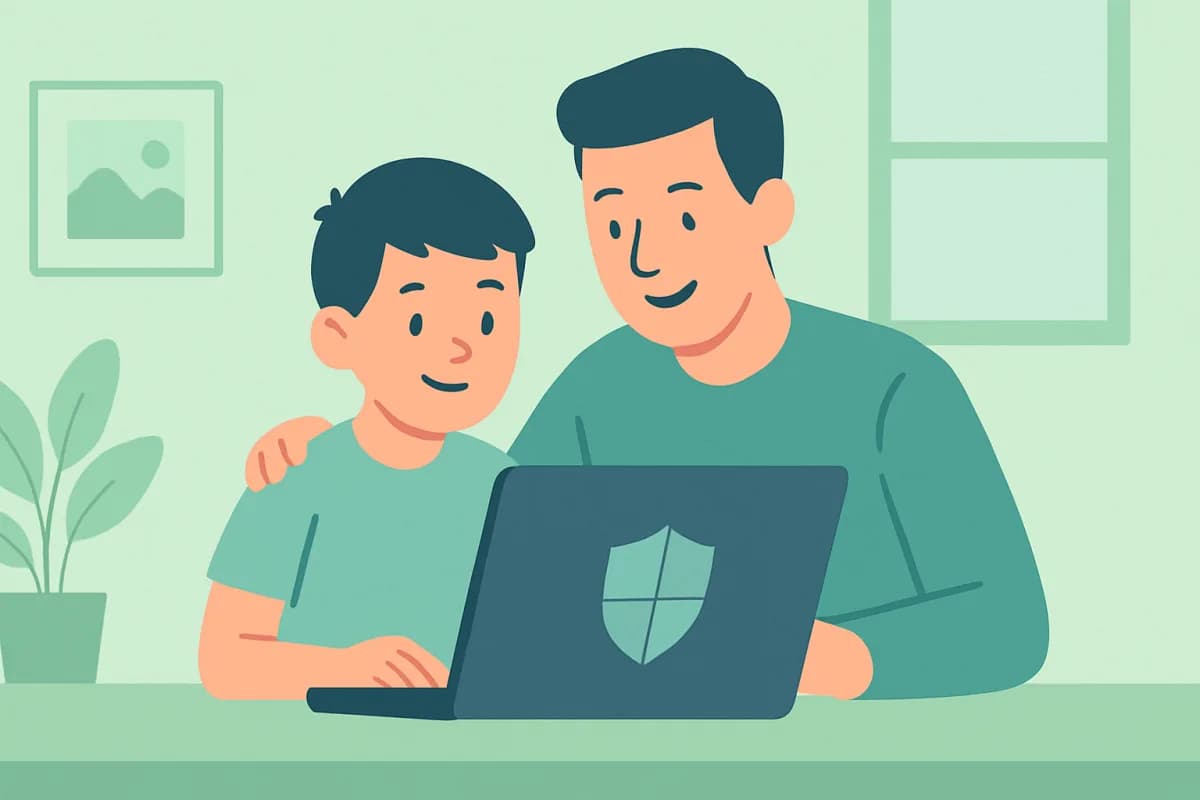
- Useful for monitoring work (with notice) and for parental oversight.
- The interval and schedule of captures are configurable.
Built-in tools versus dedicated software
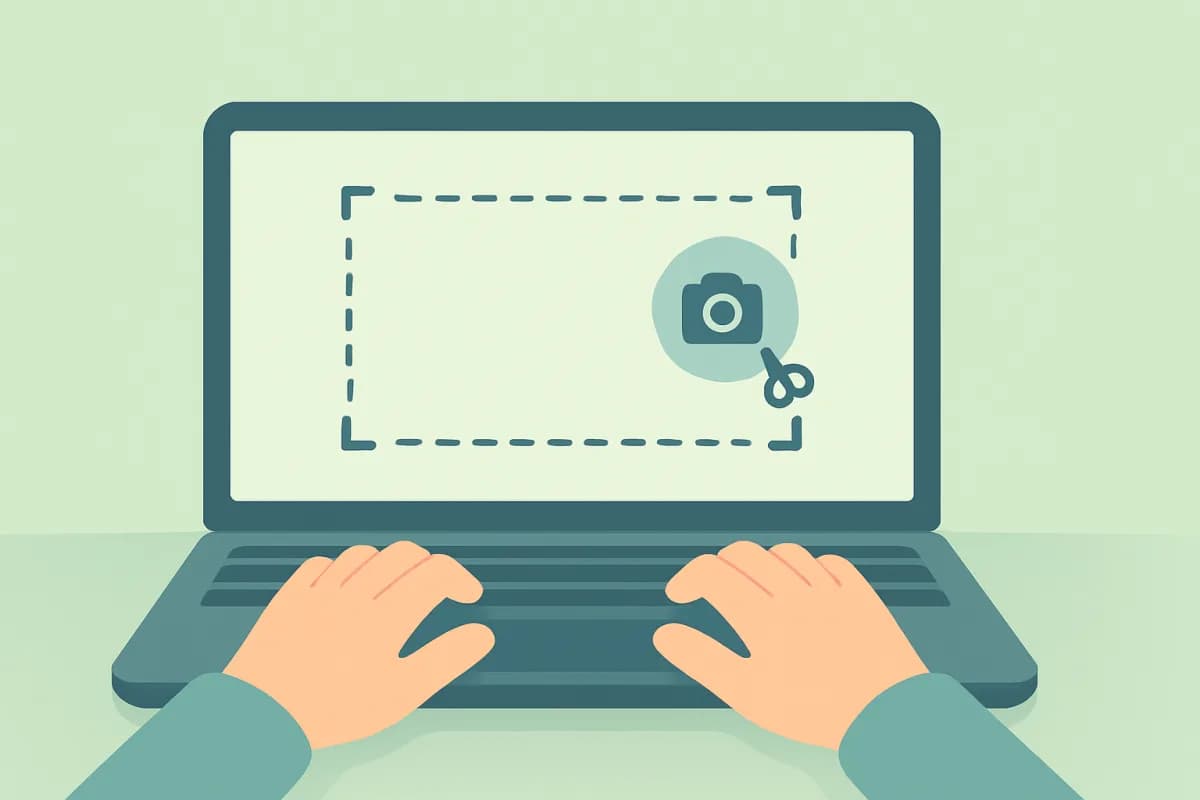
Windows has the Snipping Tool and hotkeys — great for one-off shots. But if you need a continuous screen log, manual captures won't do. Dedicated software takes automatic screenshots at set intervals and files them into a history you can easily return to.
What auto-screenshot software can do
- Screen captures at a set interval.
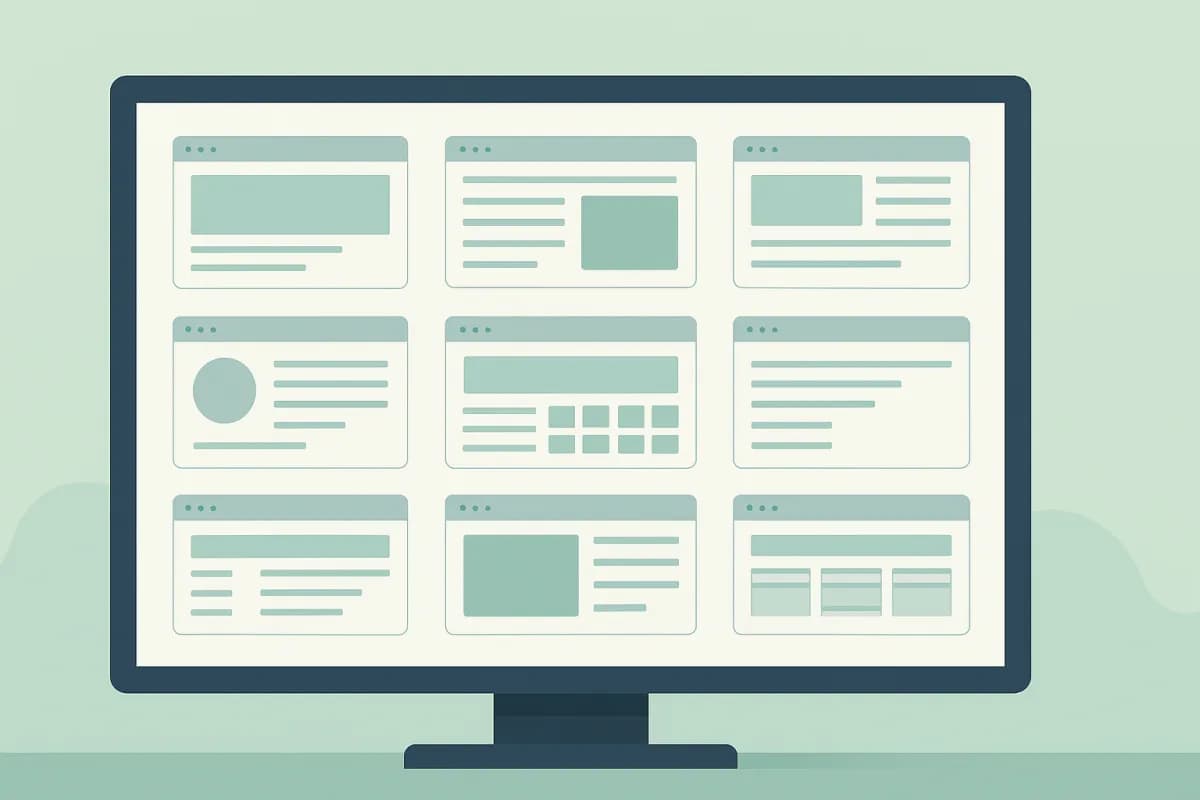
- A day-by-day history in your personal dashboard.
- Shots linked to apps and time.
- A capture schedule (working hours only, for example).
How to set up automatic screenshots
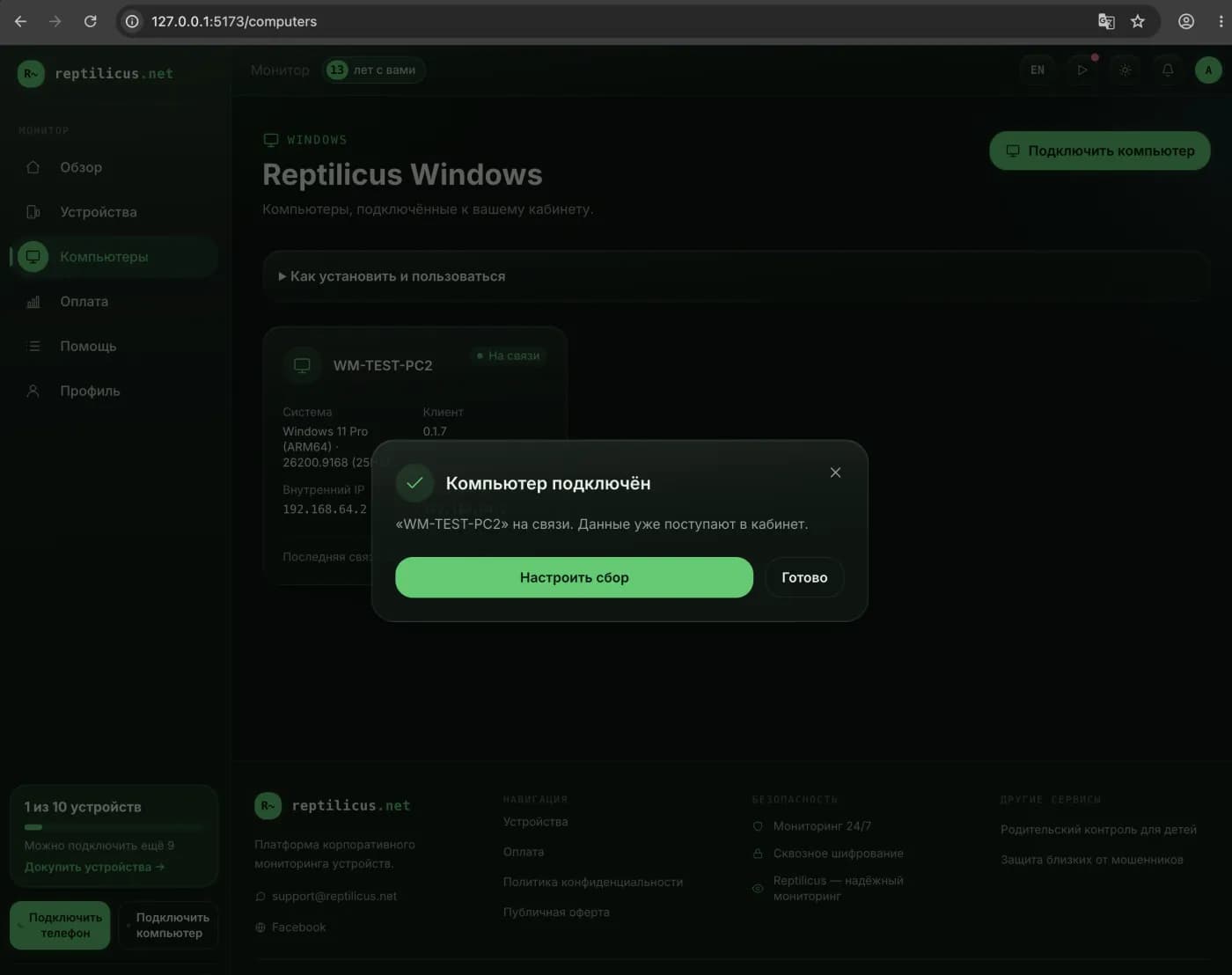
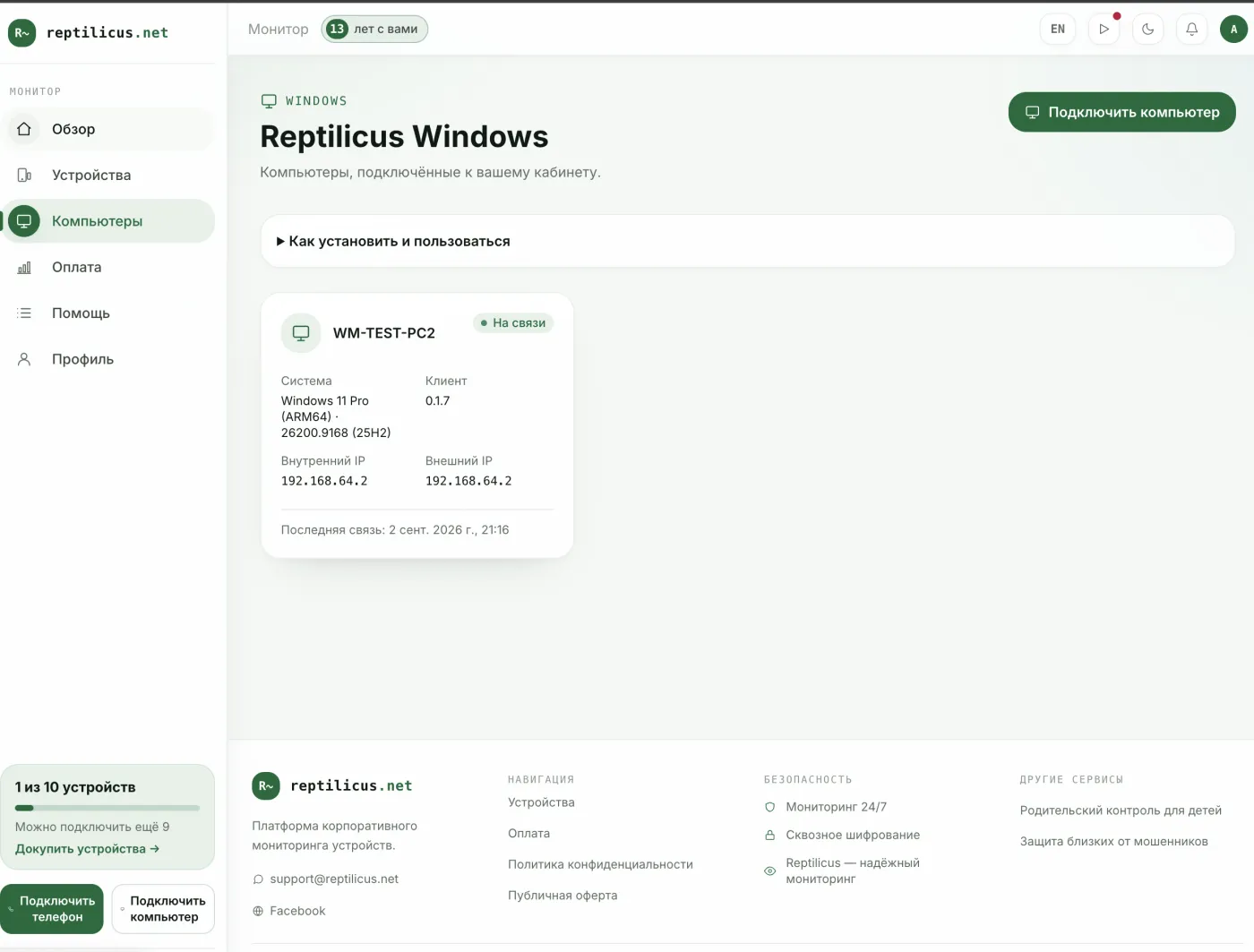
- Install the software on the computer you need and link it with a code from the dashboard.
- Set the screenshot interval and schedule.
- Open the dashboard from any device — the shots accumulate in the history.
In Reptilicus for Windows screenshots are captured automatically and available in the dashboard with a day-by-day history, alongside app and site history. This works both for monitoring work PCs (with employees notified) and for parental oversight of the home computer.
Where it is legal
Auto screenshots are legal on your own devices, a child's device and work PCs with employees notified. Installing covertly on someone else's personal devices is not allowed.
Frequently asked questions
Can screenshots be taken automatically on a schedule?
Yes, dedicated software takes shots at set intervals and on a schedule, filing them into a history.
Do screenshots strain the computer?
No, lightweight software runs in the background and sends shots in small batches.
Conclusion
For a one-off shot the built-in tools are enough, but for a continuous screen log you need auto-screenshot software. Reptilicus for Windows collects shots into a handy dashboard with a day-by-day history — for monitoring work or watching over the home PC, legally and transparently.
Reptilicus for Windows
Screenshots, apps, sites and computer activity in one dashboard. Phones and PCs together. First 24 hours free.
Create a dashboard — the Windows installer will be in the “Computers” section